How to Report a Qualifying Life Event in Eddy
Who can use this feature?
Available with Clasp Benefits Administration plan
A qualifying life event (QLE), such as getting married or having a baby, lets you change your health benefits outside your employer's open enrollment period. If your employer offers health benefits through Clasp, you can report a life event and update your elections directly from your Eddy profile.
This article covers reporting a life event. For details on each enrollment step, see How to Enroll in Health Benefits in Eddy with Clasp.
Before You Begin
- Your employer must have connected health benefits set up. If you don't see Connected health benefits on your Benefits tab, contact your HR admin.
- Know the date of your event. You can report an event that has already happened or one that's coming up, as long as the date falls within the range shown on the form.
- Have your supporting documents ready. Uploading documents is optional, but it can help your changes get processed faster. Documents must be PDF files smaller than 5 MB. Examples include a marriage certificate, a birth certificate, or your spouse's offer letter showing a change in employment.
- Have details ready for anyone you're adding. If you're adding a dependent or beneficiary, you'll need information such as their full name, relationship, date of birth, Social Security number or Tax ID, and address.
- Set aside time to finish in one session. Your progress isn't saved if you leave before you submit.
How to Report a Qualifying Life Event
1. Go to your Benefits tab. On the Home page, select View your profile under your name. Select the Benefits tab and make sure Connected health benefits is selected.
2. Start your life event. Under Any major life changes?, select Report a life event. To learn more about which events qualify, select What is a qualified life event?
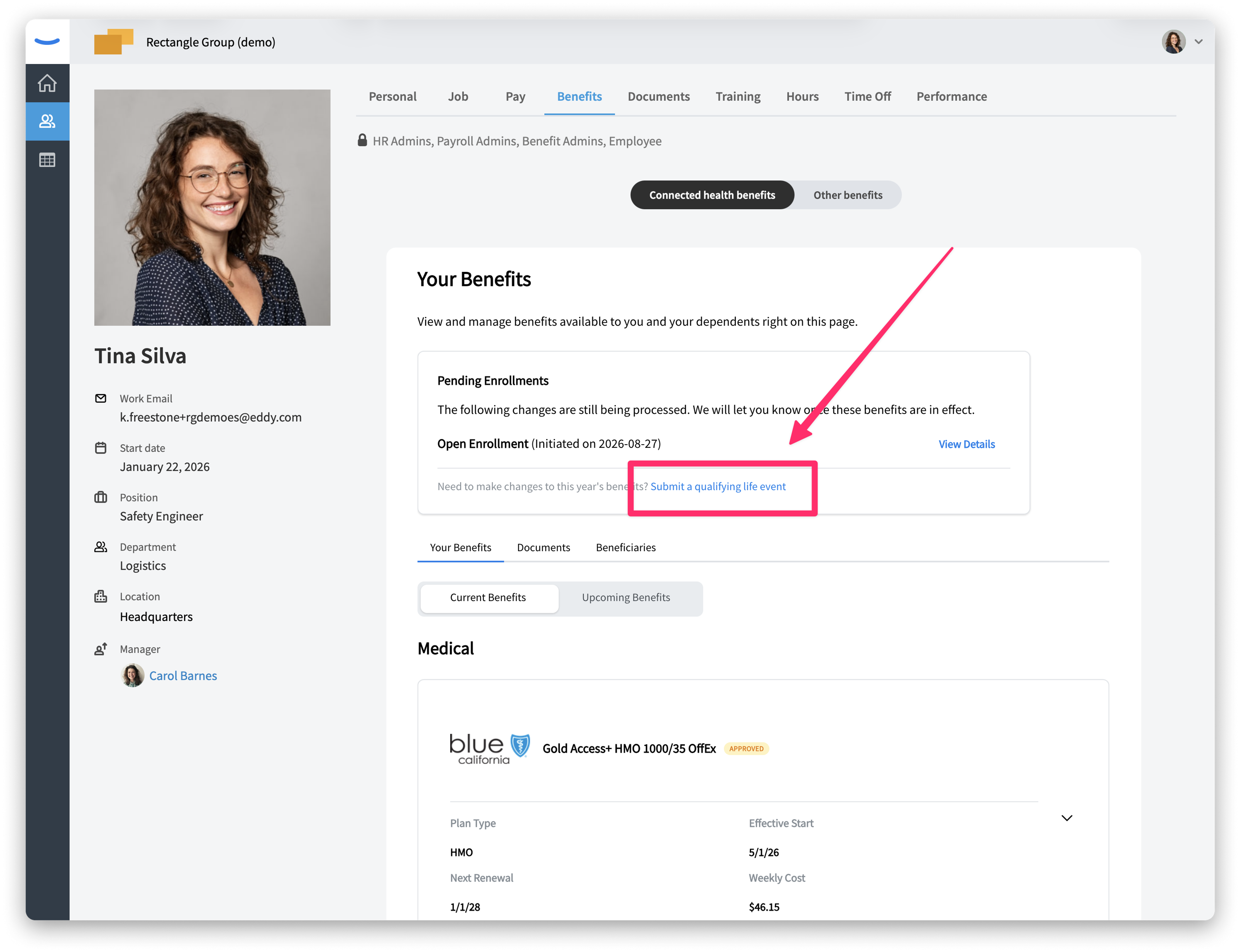
3. Select your event. Under Select Your Qualifying Life Event, choose the event that matches your situation from the dropdown. For the full list, see "Which life events can I report?" below.
4. Select the date. Under Select the Date of Benefit Coverage Change, select the date the event occurred or will occur. The form shows the range of dates you can choose.
5. Upload supporting documents (optional). Under Upload Relevant Documentation, drag your files into the upload area or select it to browse. Use clear documents that show names and dates. Only PDF files smaller than 5 MB are accepted.
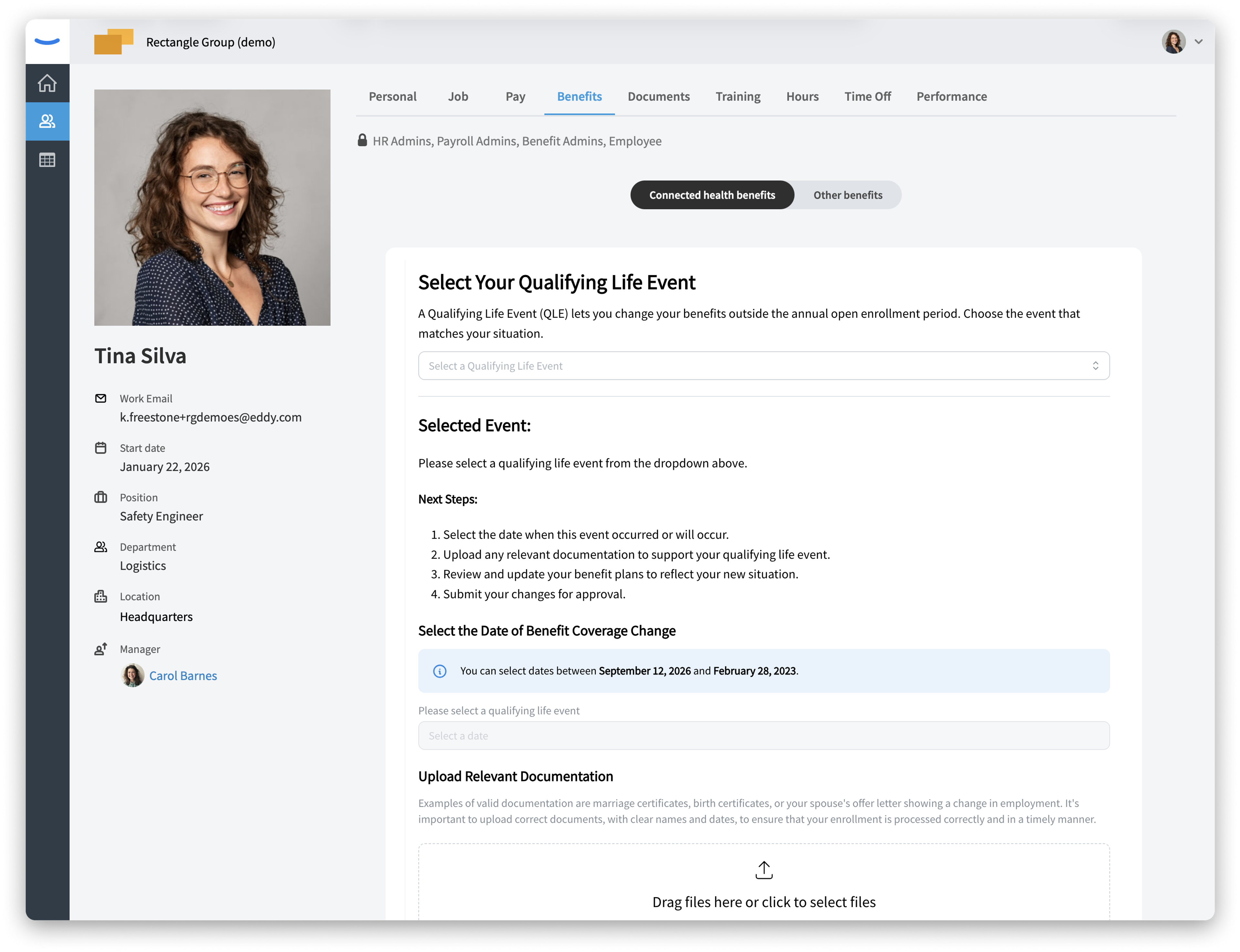
6. Select Continue. Continue becomes available once you've selected an event and a date. To exit without reporting an event, select Cancel.
7. Update your benefit elections. You'll go through the same steps as during enrollment: Member Details, Medical, Dental, Vision, Supplemental, and any other steps your employer requires, such as Beneficiary Management or Additional Information. Update the coverage your event affects, such as adding a new spouse or child as a dependent, and select Save and Continue after each step. For details on each step, see How to Enroll in Health Benefits in Eddy with Clasp.
8. Review and submit. On Review Selections, check your elections and your cost summary, then select Submit and continue.
What Happens After You Submit
After you submit, the Selections complete screen confirms your changes. Your broker and carriers review your life event and updated elections, and you'll receive a confirmation email. Watch for more emails in case additional information or documentation is needed.
While your changes are being processed, the Benefits tab on your profile shows Your Pending Benefits, with the plan, effective date, and your cost per pay period for each benefit. Once your changes are confirmed, they appear in Eddy and your deductions update in Eddy payroll automatically.
Frequently Asked Questions
Which life events can I report? The events you can choose from are grouped by type:
- Family changes: Getting Married, Entering a Domestic Partnership, Getting Divorced or Legally Separated, Having a Baby or Adopting a Child, Death of a Covered Family Member
- Employment changes: Change in Your Employment Status, Spouse or Dependent's Employment Status Changes, Taking a Leave of Absence
- Residence changes: Moving to a New Residence
- Coverage changes: Newly Eligible for Coverage, Losing Other Health Coverage, Gaining Access to New Coverage, Becoming Medicare Eligible, Significant Change in Cost or Coverage of Your Plan
- Dependent eligibility changes: Child Turning 26 Years Old, Dependent Gains Other Coverage, Dependent Loses Other Coverage
- Legal or citizenship changes: Qualified Medical Child Support Order, Becoming a U.S. Citizen or Lawful Permanent Resident, Release from Incarceration
What if my event isn't listed? Contact your HR admin. They can help you determine whether your situation qualifies.
Do I have to upload documents? No, but it's recommended. If you don't upload documents when you report your event, your broker may contact you later to request them.
My event happened outside the date range on the form. What should I do? Contact your HR admin for help.
Can I report an event that hasn't happened yet? Yes. You can select a future date, as long as it falls within the range shown on the form.
Can I change my elections after I submit them? Yes, while your changes are still pending. Go to the Benefits tab on your profile and make sure Connected health benefits is selected. Under Your Pending Benefits, select Make Changes.
When will my changes take effect? Your effective date depends on your event and your plan rules. Once you submit, you can see the effective date for each benefit under Your Pending Benefits.
Related Articles
Was this article helpful?