How to Elect Your Health Benefits in Eddy
Who can use this feature?
Available with Clasp Benefits Administration plan
If your employer offers health benefits through Clasp, you can enroll in medical, dental, vision, and supplemental coverage directly from your Eddy profile. Clasp is the benefits partner that manages your employer's health plans and sends your elections to your broker and insurance carriers. You won't need a separate Clasp account or password.
This article covers enrolling during your new hire or open enrollment period. To change your benefits outside of enrollment, see Report a Qualifying Life Event.
Before You Begin
- Your employer must have connected health benefits set up. If you don't see Connected health benefits on your Benefits tab, contact your HR admin.
- Enrollment is only available during your enrollment window. When you can enroll depends on your employer's eligibility rules. Most often, enrollment opens when you're newly hired or during your employer's open enrollment period. If you're not sure when you're eligible, contact your HR admin.
- Watch for an email from Clasp. When your enrollment opens, Clasp sends you an email with a link to the same enrollment flow. The link signs you in automatically, so don't forward it to anyone. The link may expire after a few weeks. If it no longer works, you can still enroll from your profile in Eddy.
- Have your dependent and beneficiary information ready. You'll need details for anyone you're covering or naming as a beneficiary, such as full name, relationship, date of birth, Social Security number or Tax ID, and address.
- Set aside time to finish in one session. Your progress isn't saved if you leave before you submit.
How to Elect Your Benefits
The steps you see depend on the benefits your employer offers and the elections you make along the way. For example, Beneficiary Management only appears for certain benefits.
1. Open your enrollment. You can start in either of two places:
- In Eddy, on the Home page, select View your profile under your name. Then select the Benefits tab and make sure Connected health benefits is selected.
- In the enrollment email from Clasp, select the link.
Both open the same enrollment steps. When you start from the email link, the enrollment opens on its own page without Eddy's navigation or branding.
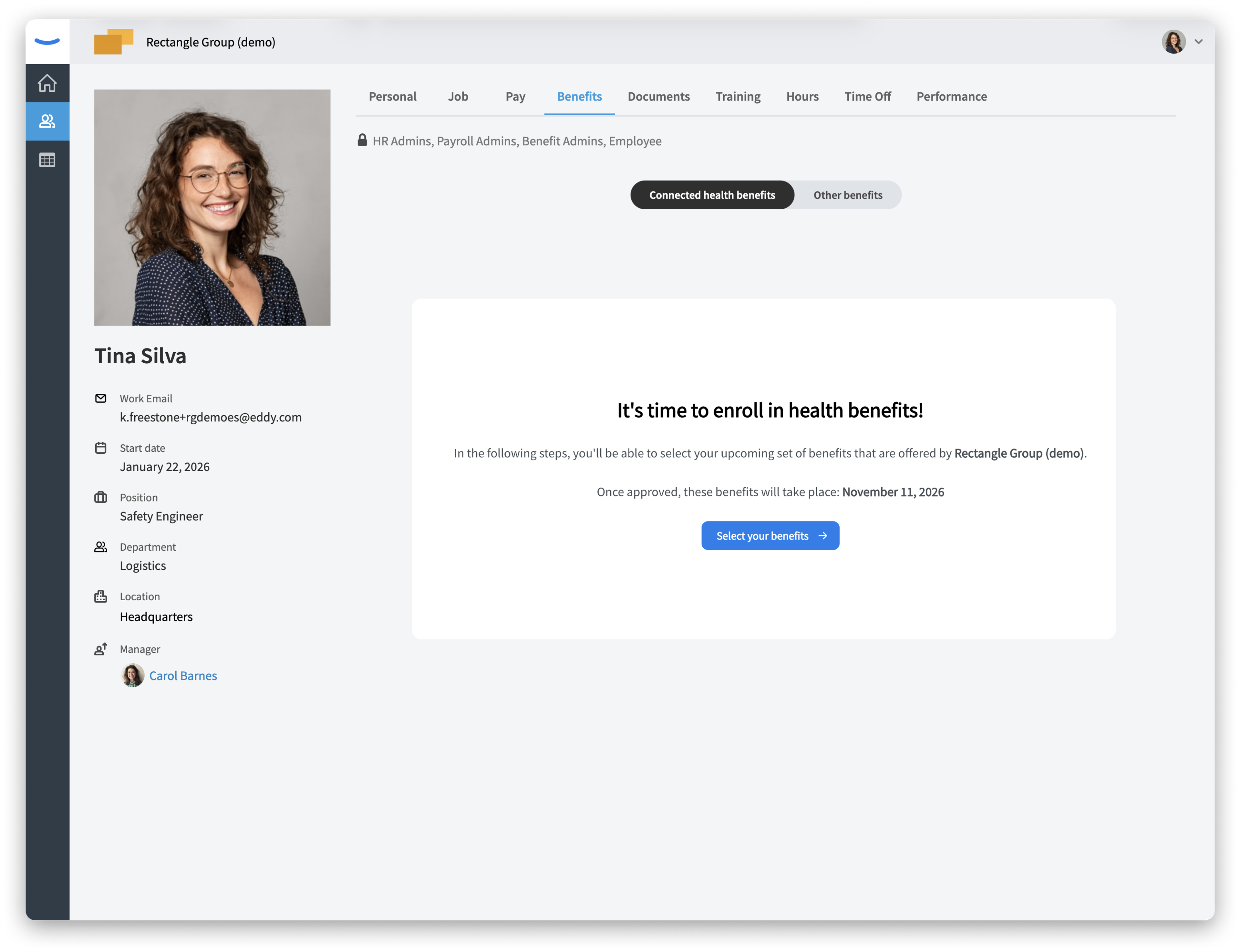
2. Start your enrollment. The It's time to enroll in health benefits! screen shows the date your new benefits take effect. Select Select your benefits.
3. Review your member details.
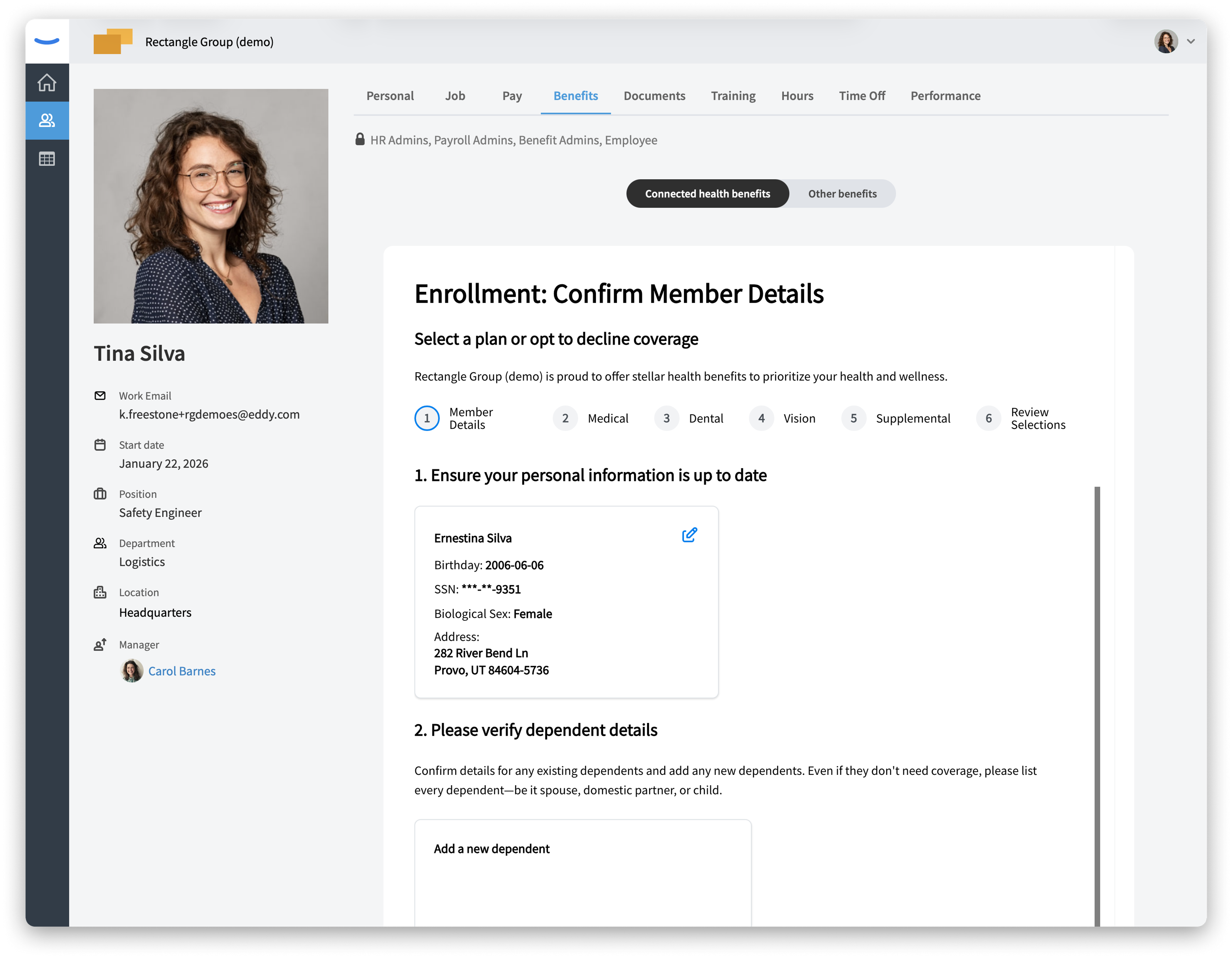
- Under Ensure your personal information is up to date, check your name, birthday, Social Security number, biological sex, and address. To make a change, select the edit (pencil) icon.
- Under Please verify dependent details, confirm any existing dependents and select Add a dependent to add new ones. List every dependent (spouse, domestic partner, or child), even if they don't need coverage.
- Select Save and Continue.
4. Choose your medical plan.
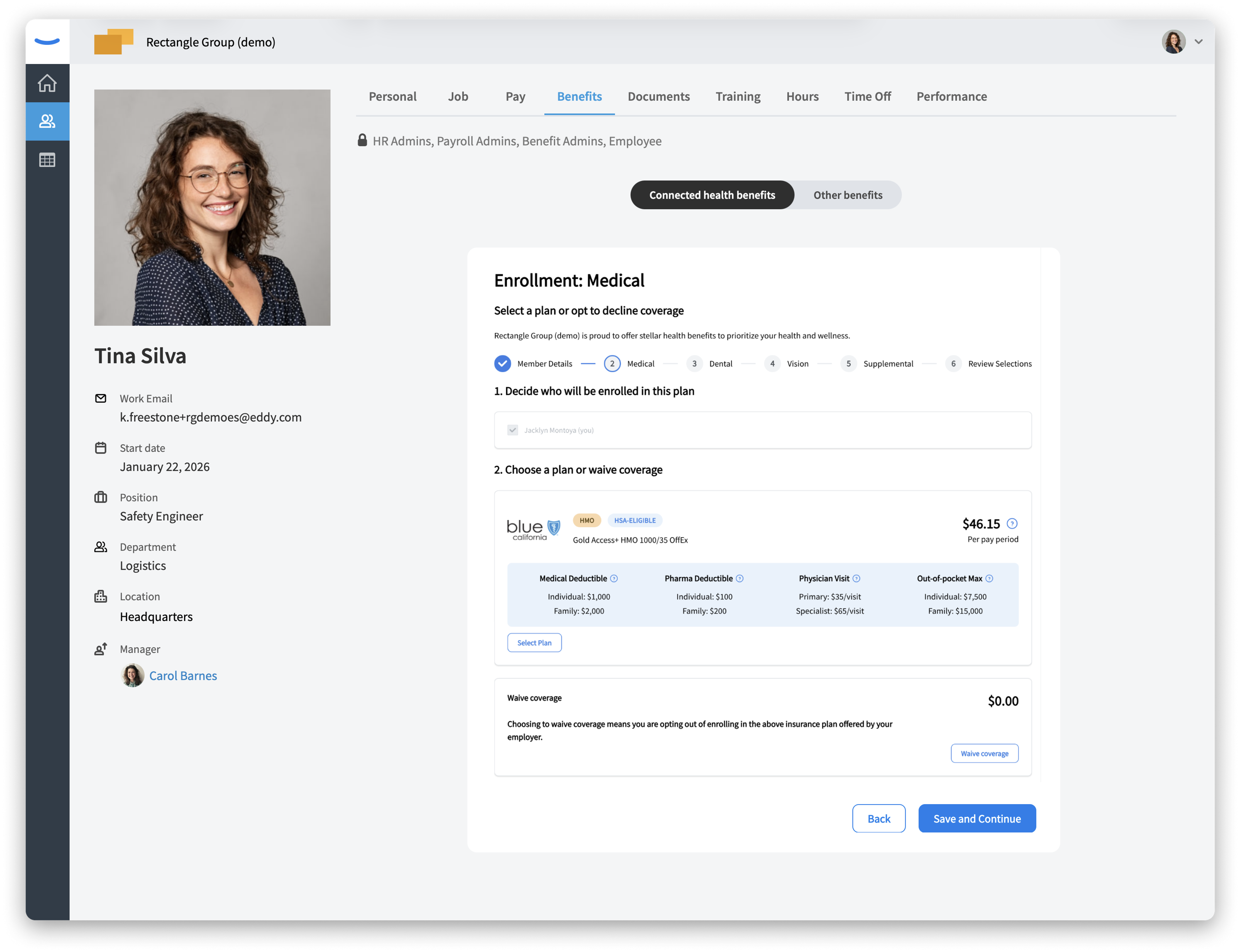
- Under Decide who will be enrolled in this plan, select the dependents you want to cover. You're included automatically.
- Under Choose a plan or waive coverage, compare the available plans. Each plan card shows the carrier, plan name, plan type (such as HMO or HSA-eligible), your cost per pay period after your employer's contribution, and key details like deductibles, visit costs, and out-of-pocket maximums. Select the help (?) icon next to a term to learn more.
- Select Select Plan on the plan you want, or select Waive coverage to opt out.
- Select Save and Continue.
5. Choose your dental and vision plans. These steps work the same way as medical. Choose who to enroll, then select a plan or waive coverage, and select Save and Continue.
6. Choose your supplemental benefits. Your employer may offer coverage such as Life, Short Term Disability, Accident, and Hospital Indemnity. Expand each benefit to enroll or waive it. Each one shows a status of Enrolled or Waived. Select Save and Continue when you're done. If your employer offers a Health Savings Account (HSA), you'll also have the option to enroll in it or waive it. [Screenshot: Supplemental Benefits step]
7. Add your beneficiaries (if shown). If you enrolled in a benefit that pays out to beneficiaries, such as life insurance, you'll see Beneficiary Management.
- Primary beneficiaries receive benefits first. You can add up to 10, and their allocations must total 100%.
- Contingent beneficiaries receive benefits if no primary beneficiary is eligible. You can add up to 10, and their allocations must total 100%.
- Select Add Primary Beneficiary or Add Contingent Beneficiary, enter the beneficiary's full name, relationship, SSN or Tax ID, date of birth, phone number, and address, then select Save.
- To change a beneficiary, select Edit. Select Save and Continue when you're done.
8. Answer any additional questions (if shown). Your employer or carriers may ask for more information in the Additional Information step. Complete any required fields and select Save and Continue.
9. Review and submit your selections.
- On Review Selections, expand any benefit to check your choices. Benefits you waived show (Waived) next to their name.
- Under Your Cost Summary, review the total cost of your benefits, your employer's contribution, and your total cost per pay period.
- To make changes, select Back. When everything looks right, select Submit and continue.
10. Check your next steps. The Selections complete screen confirms your submission. Your broker and carriers review your elections, and you'll receive a confirmation email. Watch for more emails in case additional information is needed. Once your elections are confirmed, your new benefits appear in Eddy on your effective date. Select Back to Benefits Summary to return to your Benefits tab.
What Happens After You Submit
Your elections are typically reviewed and approved by your employer's benefits broker, though the approval process can vary by employer.
While your elections are being processed, the Benefits tab on your profile shows Your Pending Benefits. Each benefit card lists the plan, its effective date, and your cost per pay period. These benefits aren't active yet, and you'll be notified once they take effect.
Once your benefits are confirmed, your deductions sync to Eddy payroll automatically. Your HR admin doesn't need to set them up manually.
Frequently Asked Questions
Do I need a Clasp account to enroll? No. You enroll directly in Eddy, and the link in your Clasp email signs you in automatically.
I don't see the option to enroll. What should I do? Enrollment is only available during your enrollment window, and your employer must have connected health benefits set up. If you think you should be able to enroll, contact your HR admin.
Can I save my progress and finish later? No. If you leave before you submit, you'll need to start your enrollment over. Plan to complete all steps in one session.
Who approves my elections? This varies by employer. In most cases, your benefits broker reviews and approves your elections through Clasp.
When will benefit deductions start appearing on my paycheck? Once your elections are confirmed, your deductions sync to Eddy payroll automatically. The first paycheck they appear on depends on your coverage effective date and your pay schedule. If you have questions about a specific paycheck, contact your HR admin.
Can I change my elections after I submit them? Yes, while your elections are still pending. Go to the Benefits tab on your profile and make sure Connected health benefits is selected. Under Your Pending Benefits, select Make Changes to update your elections. After your enrollment period ends, you can change your benefits if you have a qualifying life event, such as marriage, divorce, or having a child. Otherwise, you can make changes at your employer's next open enrollment. See Report a Qualifying Life Event.
What's in the Other benefits view? Other benefits shows benefits that aren't managed through Clasp, such as a 401(k) or other perks your employer offers. Select Connected health benefits to return to your health benefits enrollment.
Was this article helpful?