Set Up Tax Code Rules for Tip Codes (TTOC) and Occupation Codes (SOC)
Who can use this feature?
Available with Payroll plan
Two payroll codes now appear on required tax filings, and most employees don't have them yet:
- Treasury Tipped Occupation Codes (TTOC) are required on 2026 W-2s for any employee paid tips.
- Standard Occupational Classification (SOC) codes are required for employees working in Washington, Indiana, Louisiana, or South Carolina.
The Tax codes page in Payroll settings lets you set these codes once per job title. Eddy applies the codes to employees in that title, including people hired into it later, and shows you exactly who is still missing a code.
Before You Begin
- You need the Payroll Admin or Owner role to access the Tax codes page.
- Your job titles should be set up in Company Info › Job Titles. Tax code rules are built from that list.
- Both TTOC and SOC codes are chosen from lists in Eddy, so you don't need to look them up elsewhere.
- Tax code rules apply to employees only, not contractors.
1. Open the Tax codes page
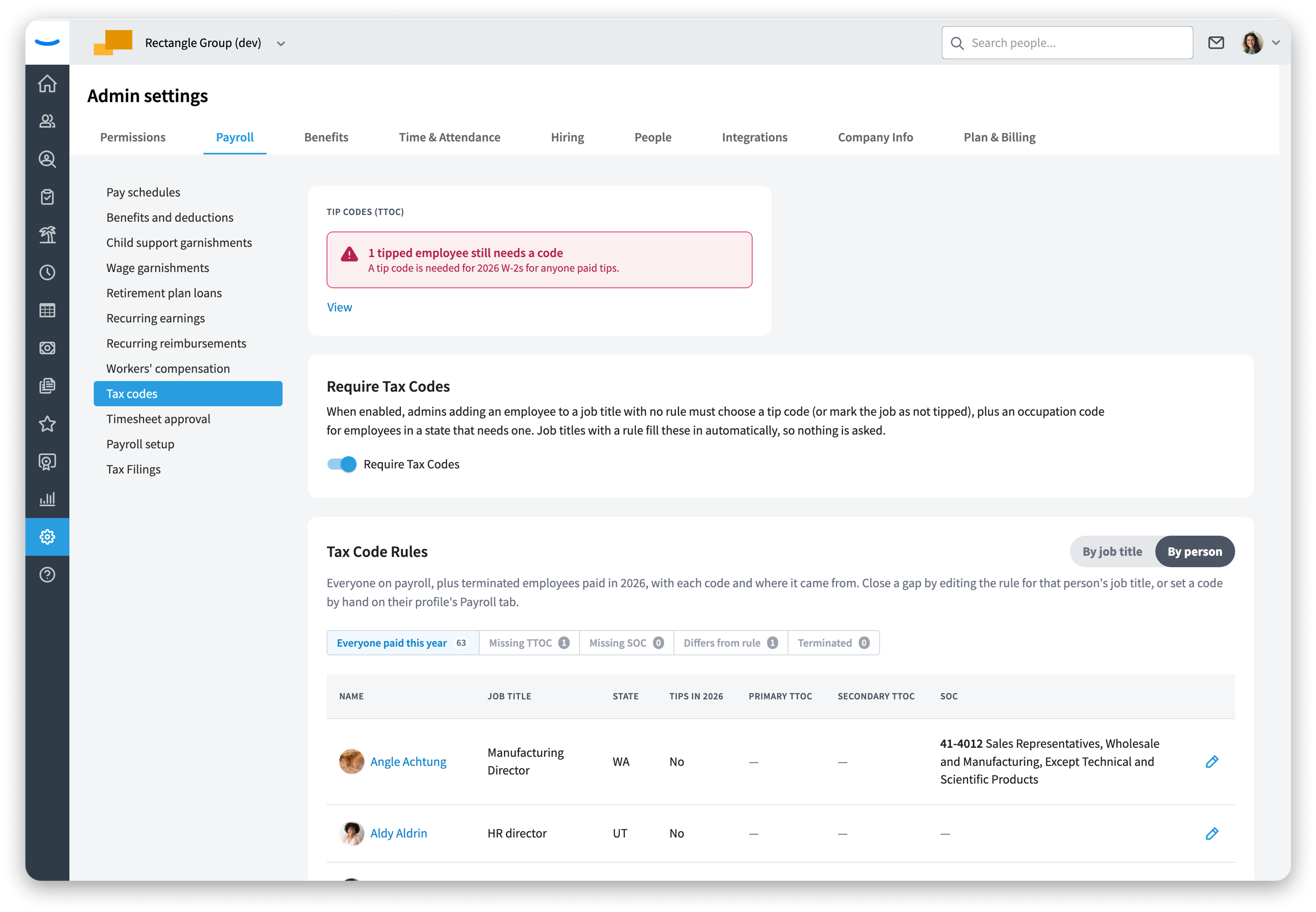
Go to Admin Settings › Payroll › Tax codes. The page sits between Workers' compensation and Timesheet approval.
The page has three parts:
- Status cards showing how many employees are missing a code
- The Require Tax Codes setting
- Tax Code Rules, which you can view by job title or by person
2. Review the status cards
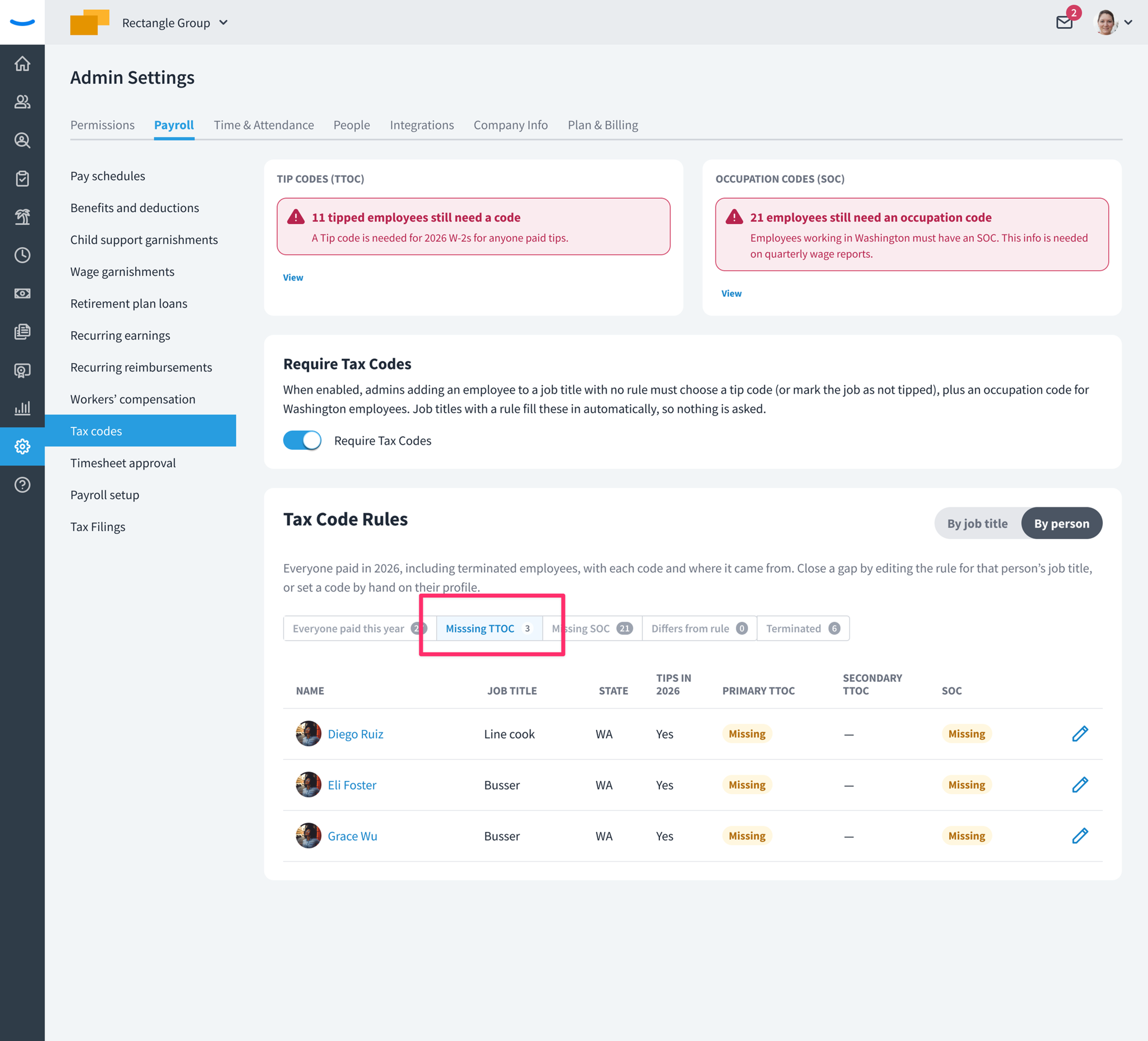
If any employees are missing a code, an alert card appears at the top of the page for each code type:
- Tip codes (TTOC) counts employees who were paid tips in 2026 and don't have a tip code.
- Occupation codes (SOC) counts employees working in Washington, Indiana, Louisiana, or South Carolina who don't have an occupation code, including active employees who haven't been paid yet.
Click View on either card to jump to the By person view, filtered to the employees missing that code. Once every gap is closed, the cards disappear.
3. Add a tax code rule for a job title
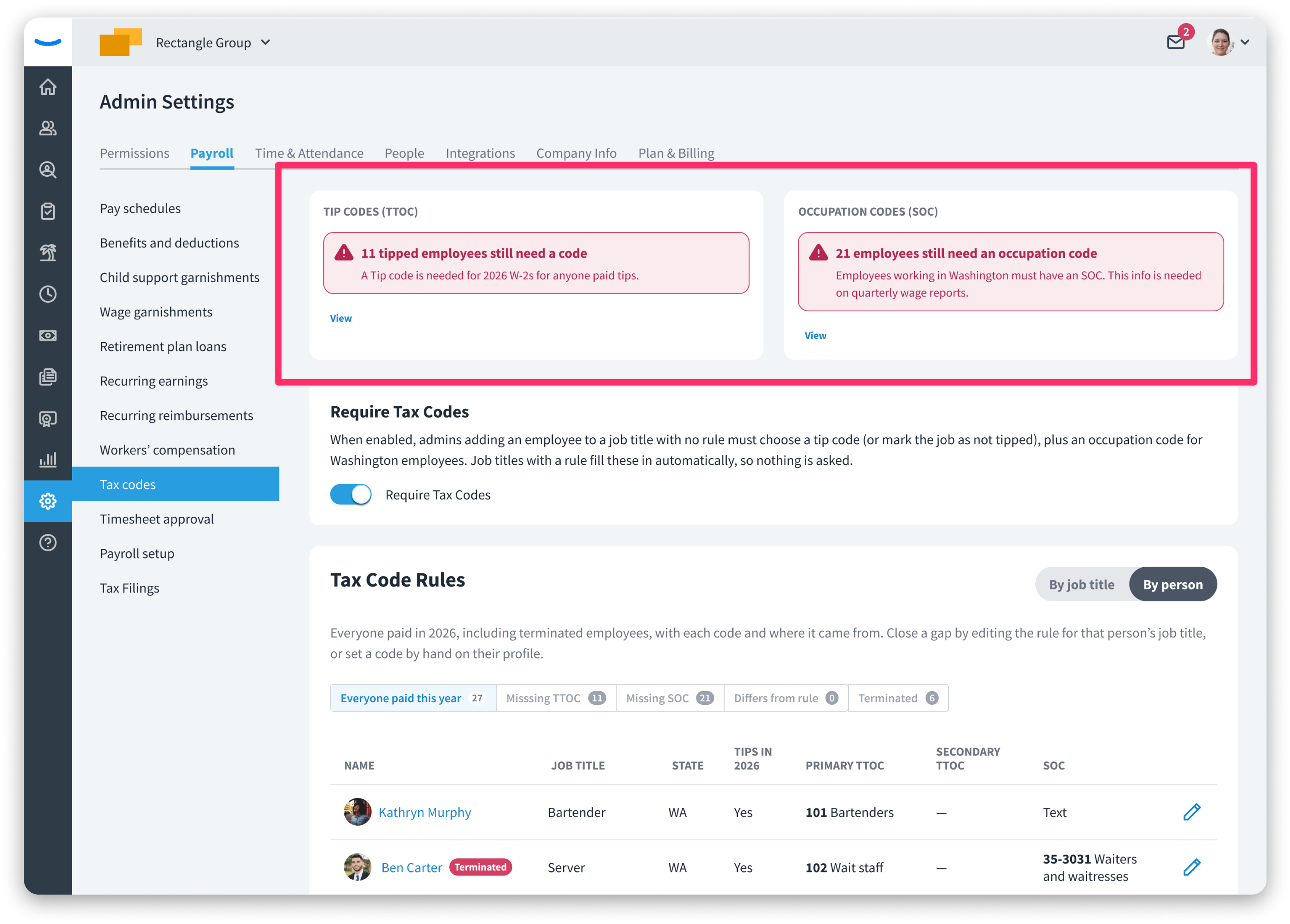
Under Tax Code Rules, the By job title view is shown by default. Each row is a job title with its number of people (active employees plus terminated employees paid this year) and its current tip code and occupation code, shown by code and name.
When a job title has no rule, the code cells show one of these:
- Need code (amber) means at least one person in the title needs this code, for example "Need code (2 paid tips)."
- no rule (gray) means no rule exists, but nobody in the title currently needs one.
To add or change a rule:
- Click the Edit (pencil) icon on the job title's row.
- In Tip code (TTOC), select the tip code for this job title, or select Not tipped if employees in this title don't receive tips. This sets the employee's primary tip code.
- In Occupation code (SOC), select the occupation code from the list.
- If you're changing an existing rule, check Also update employees whose code still matches the previous rule to move those employees to the new code. Employees with a different code keep it.
- Click Save.
The rule applies right away to employees in the job title who don't have a code yet, including terminated employees paid in 2026, and to anyone hired into the title later. It never replaces a code an employee already has, except through the update option in step 4.
To remove a rule, open it and click Delete rule. Codes already applied to employees stay in place.
4. Review codes by person
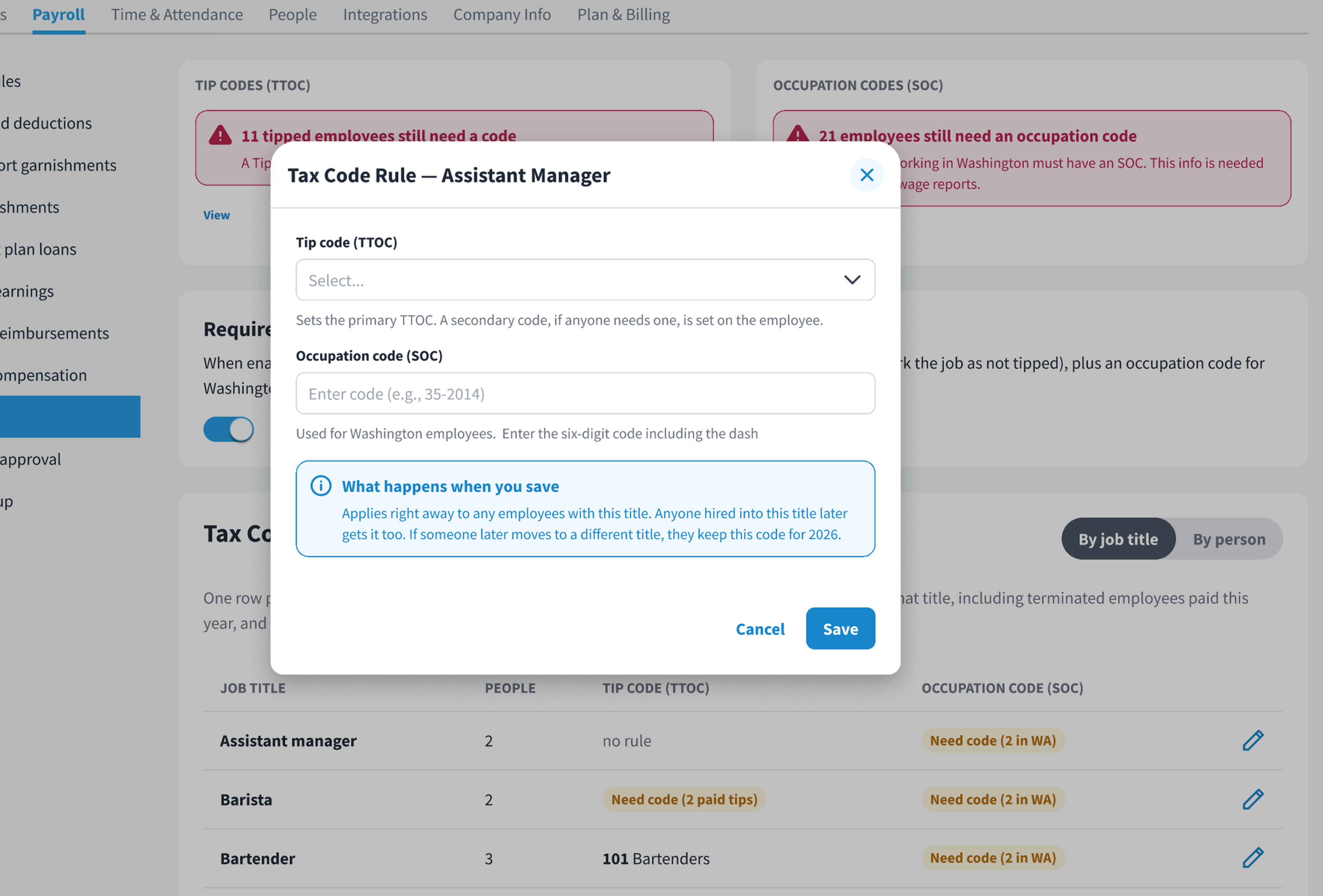
Switch Tax Code Rules to By person to see employees along with their job title, work state, whether they received tips in 2026, and their primary TTOC, secondary TTOC, and SOC.
- A required code that's missing shows an amber Missing chip.
- A code that isn't required (for example, a tip code for someone with no tips) shows a dash.
Use the tabs above the table to filter the list:
- Everyone paid this year shows all employees with 2026 pay, active and terminated.
- Missing TTOC shows employees paid tips in 2026 with no primary tip code.
- Missing SOC shows employees working in Washington, Indiana, Louisiana, or South Carolina with no occupation code, including active employees who haven't been paid yet.
- Differs from rule shows employees whose code was set by hand on their profile and doesn't match their job title's rule. These codes are labeled "Set by hand."
- Terminated shows terminated employees paid this year. They still need codes for 2026 W-2s and wage reports.
To close a gap, either click the Edit icon on the employee's row or set the code by hand on the employee's profile under Payroll › Other. The Edit icon opens the rule for the employee's job title, so your change applies to everyone in that title. To change one employee's code only, use their profile.
5. Turn on Require Tax Codes
Turn on Require Tax Codes to keep new gaps from opening. When it's on, anyone adding an employee or changing an employee's job title to a title with no rule must choose a tip code (or Not tipped), plus an occupation code for employees working in Washington, Indiana, Louisiana, or South Carolina. Job titles that already have a rule fill in the codes automatically, so nothing extra is asked.
Codes entered this way apply to that employee only. They don't create a rule for the job title.
FAQ
Will saving a rule overwrite codes I've already entered for employees?
No. A rule only fills in blank codes. If an employee already has a code set by hand, their code stays, and they'll appear under Differs from rule if it doesn't match.
If I change a rule, do employees who already got the old code update?
Only if you choose to. When you edit a rule, check Also update employees whose code still matches the previous rule before saving. Employees whose code differs from the previous rule keep their code.
What happens if an employee moves to a different job title?
They keep their current code unless you change it on their profile.
How do I set a secondary tip code?
Rules only set the primary tip code. Set a secondary tip code by hand on the employee's profile under Payroll › Other. Secondary tip codes are never flagged as missing.
Can I give one employee a different code than their job title's rule?
Yes. Set the code on the employee's profile under Payroll › Other. A code set by hand always takes priority over the rule.
Do terminated employees need codes?
Yes, if they were paid in 2026. They still appear on 2026 W-2s and wage reports, so rules apply to them too.
An employee received tips but isn't showing as missing a tip code. Why?
Only tips paid through Eddy in 2026 count. Tips paid through a previous payroll provider aren't included. You can still set a tip code by hand on the employee's profile under Payroll › Other.
Which states require an occupation code?
Eddy flags missing occupation codes for employees working in Washington, Indiana, Louisiana, or South Carolina.
What happens if I delete a rule?
Codes already applied to employees stay in place. New hires into that job title won't get codes automatically.
Related Articles
Was this article helpful?