Hours by Pay Period Report
The Hours by Pay Period report shows each employee's tracked hours and time off for a single pay period, broken out into regular hours, overtime, double overtime, holiday hours worked, and each type of PTO. It makes gathering the information you need for payroll simple, and you can download it as a CSV to send to a third-party payroll provider.
If you run payroll in Eddy, you don't need this report to get hours into payroll. Approved timesheets flow into payroll automatically. You can still use the report to review hours.
Before You Begin
The report pulls hours from employee timesheets in Time Tracking, so pay schedules and time tracking need to be set up first.
How to View the Report
- Click Reports in the sidebar.
- Click Hours by pay period.
- If your company has more than one pay schedule, select the one you want from the Pay Schedule dropdown.
- Select a date range from the Pay period dropdown. The most recent pay period displays by default, even if it hasn't ended yet, so its hours may still change. Choose any previous pay period from the same list.
- Optional: Click Hide Filter to collapse the filter panel and give the table more room.
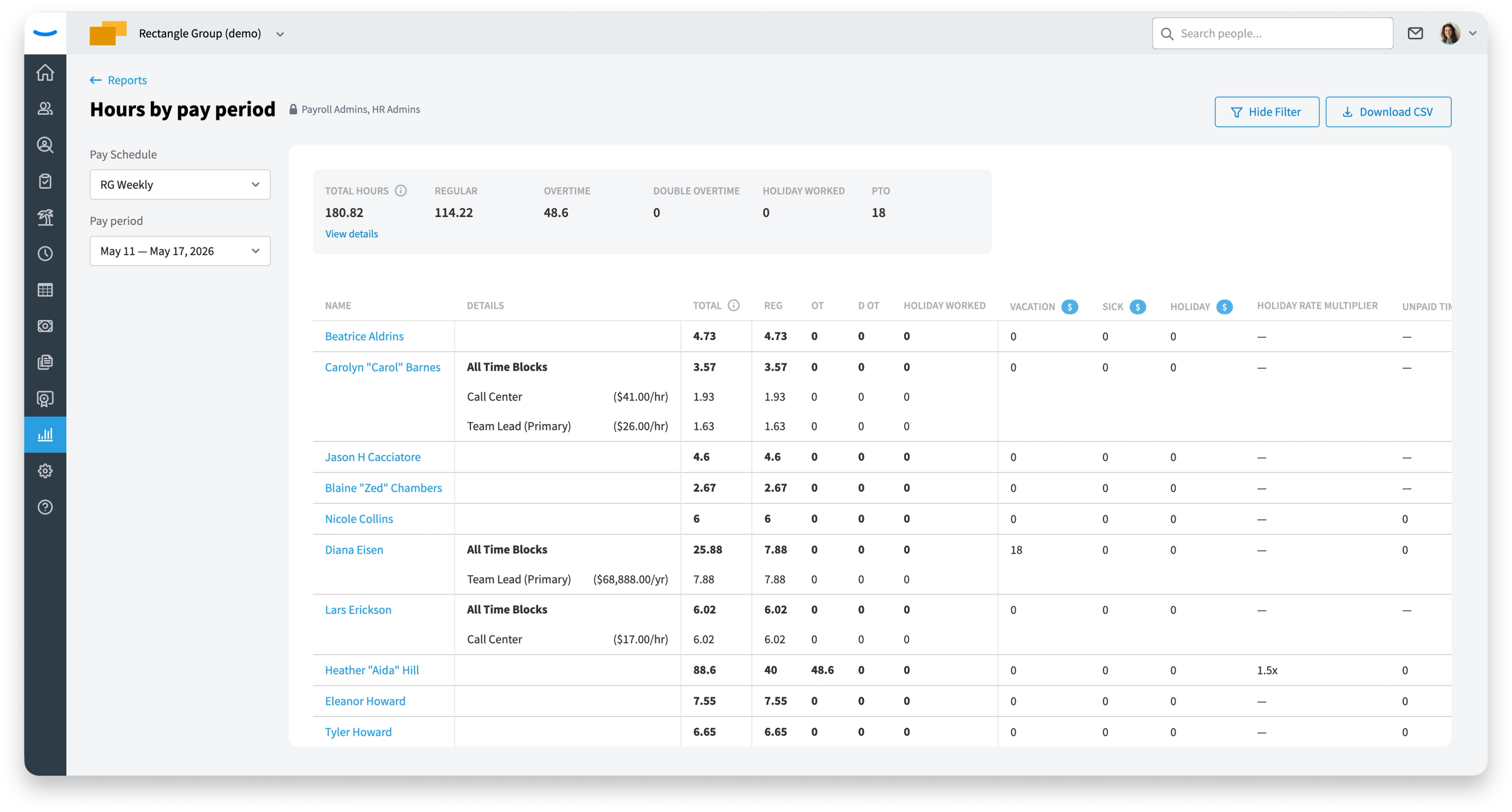
Understanding the Report Summary
The summary at the top of the report totals hours across all employees for the selected pay period:
- Total Hours: Total payable hours, which includes hours worked and paid time off. Unpaid time off is not included.
- Regular: Hours paid at the regular rate.
- Overtime: Hours paid at the overtime rate.
- Double Overtime: Hours paid at the double overtime rate.
- Holiday Worked: Hours worked on a company holiday.
- PTO: Paid time off hours taken during the pay period.
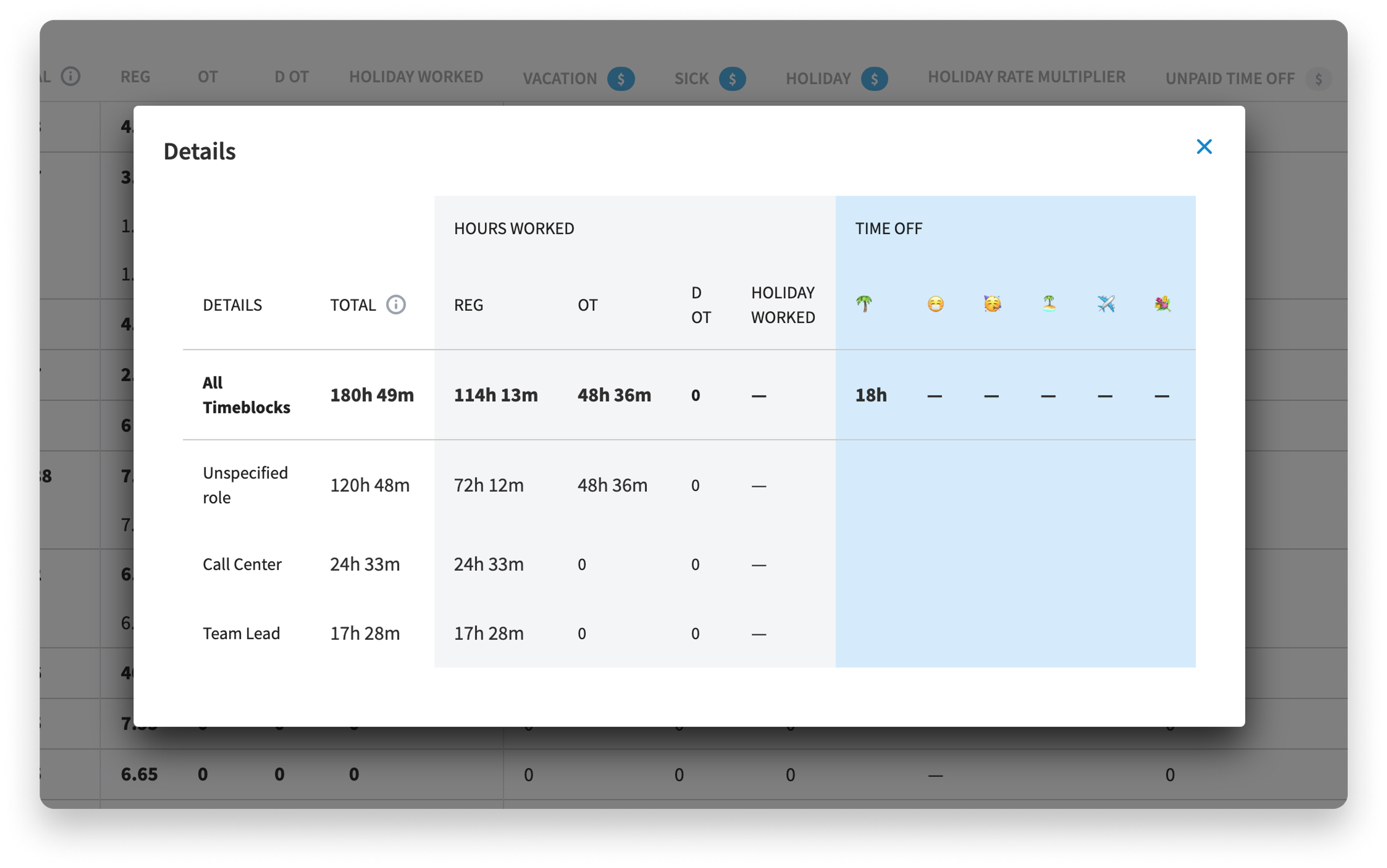
Click View details below the totals to open a breakdown of the same totals in hours and minutes. The Details window splits hours worked by role, with time not assigned to a role listed as Unspecified role, and splits time off by time off type.
Understanding the Employee Table
Each employee appears on their own row with the same hour categories as the summary, followed by a column for each time off type your company uses (for example, Vacation, Sick, Holiday, Unpaid Time Off, FMLA, Floating Holiday, and Bereavement). Scroll right to see all time off columns, along with each employee's Approval Status, Employee ID, and Email.
A few things to know when reading the table:
- Total: Like the summary, an employee's Total includes hours worked and paid time off, but not unpaid time off.
- Approval Status: Shows whether the employee's timesheet for the pay period has been approved. If you're sending hours to a third-party payroll provider, check that every timesheet is approved first.
- Employees with multiple roles: If an employee works more than one role, the Details column shows an All Time Blocks row with their combined hours, followed by a row for each role with that role's pay rate. The employee's primary role is labeled (Primary).
- Holiday Rate Multiplier: Shows the rate applied to holiday hours worked (for example, 1.5x).
- Paid vs. unpaid time off: A blue $ icon next to a time off column means that time off type is paid. A gray $ icon means it's unpaid.
- Dashes vs. zeros: A 0 means the employee had no hours in that category. A dash (—) means the category doesn't apply to that employee.
How to Download the Report as a CSV
If you use a third-party payroll provider, you'll want to send them this report at the end of each pay period.
- Select the pay schedule and pay period you want to download.
- Click Download CSV at the top right of the report.
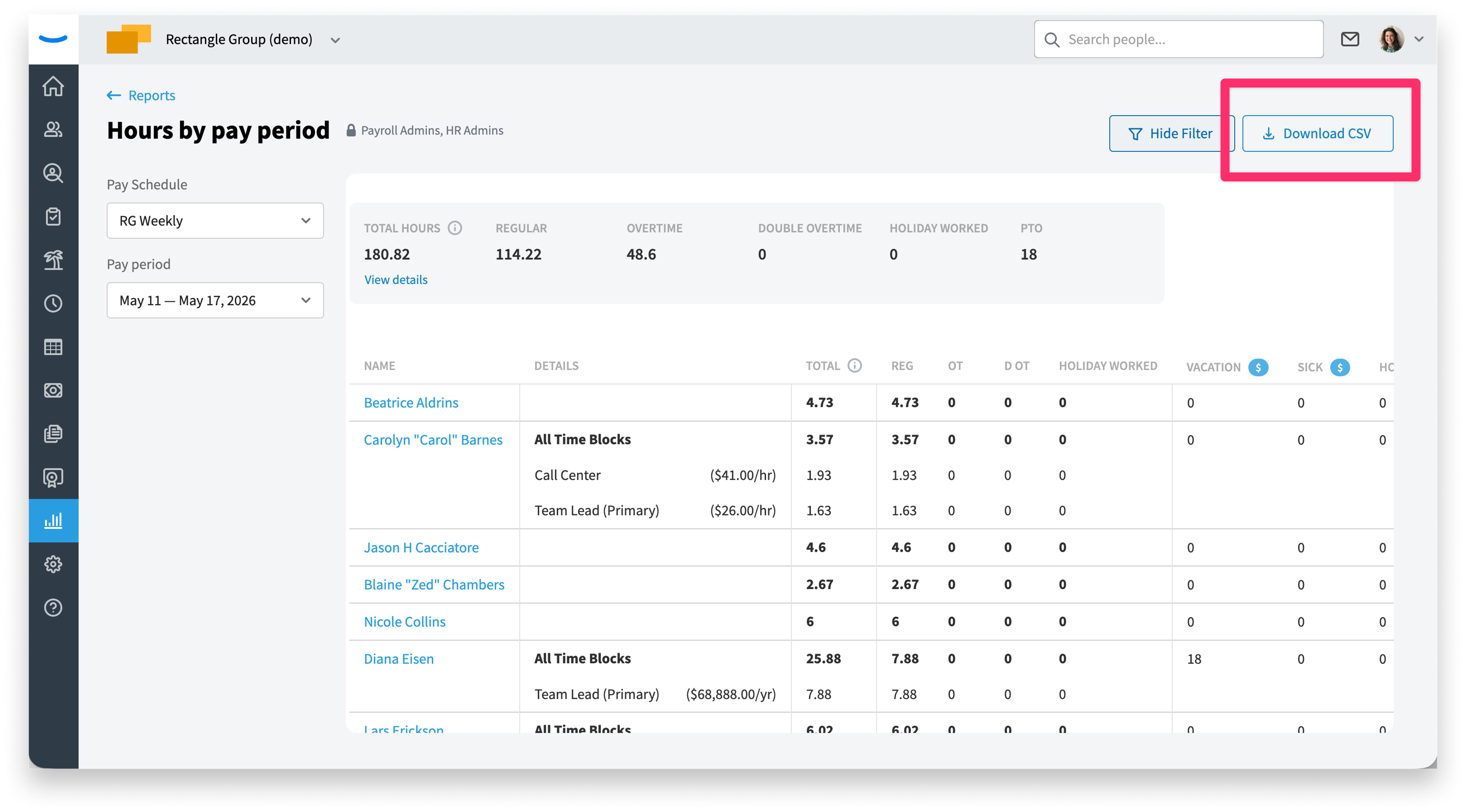
The CSV includes everything shown in the report, plus employee details such as Employment Status, Employment Type, Department, Location, and FLSA Status. The first rows of the file contain the summary totals.
For employees with multiple roles, the CSV follows the same layout as the report: one All roles row with the employee's total hours and time off, followed by one row per role with that role's pay rate and its regular, overtime, and double overtime hours.
FAQ
Why does an employee appear on more than one row? The employee works more than one role. The first row shows their combined total, and each row below it shows the hours and pay rate for one role.
Why doesn't Total Hours match hours worked plus all time off? Total Hours counts only payable hours. Unpaid time off, such as Unpaid Time Off or FMLA, appears in its own column but isn't added to the total.
Can I view reports for past pay periods? Yes. Select any previous pay period from the Pay period dropdown.
Why can't I see the Hours by pay period report? This report is only available to Payroll Admins and HR Admins. Ask an admin at your company to update your role if you need access.
Do I need this report if I run payroll in Eddy? No. When timesheets are approved, hours flow into Eddy Payroll automatically. You can still use this report to review hours by employee, role, and time off type.
Was this article helpful?