How to Edit a Time Off Request
Change the dates, hours, or category of a pending request, or withdraw it, without deleting and starting over.
If you need to change a time off request you've already submitted, you can edit it directly in Eddy instead of deleting it and starting over. You can also withdraw a request you no longer need. This article covers how to do both on desktop and mobile.
Before You Begin
- You can edit or withdraw any request that is still pending approval.
- When you edit a request, Eddy sends the updated request back to your approver for approval.
- You can only edit your own requests.
- Editing and withdrawing are available on both the desktop app and the mobile app.
Edit a request on desktop
- From your employee profile, open the Time Off tab.
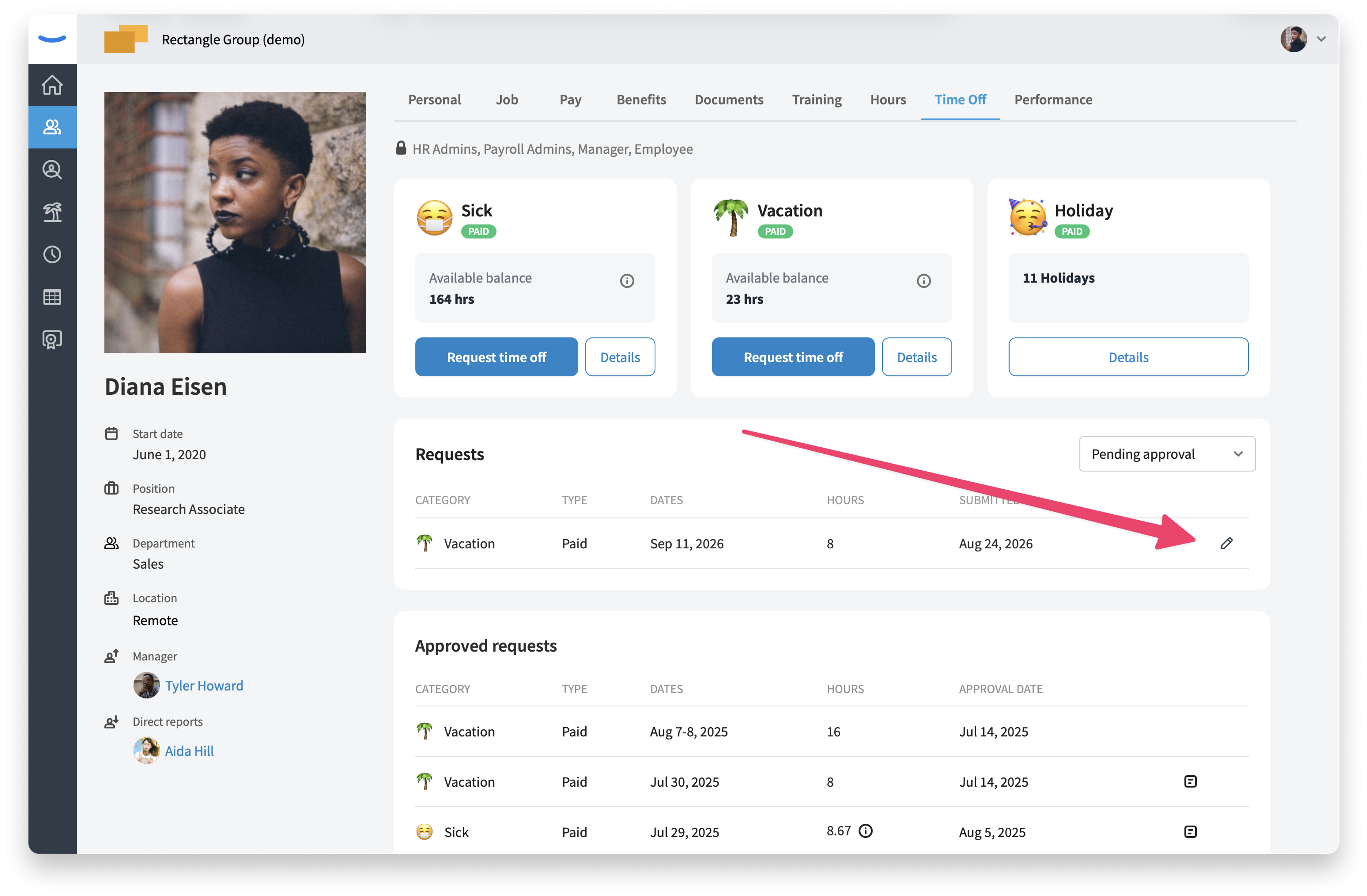
- Scroll to the Requests section. This section lists your pending requests. (If it's filtered, make sure the filter is set to Pending approval.)
- Find the request you want to change and click the edit (pencil) icon on that row.
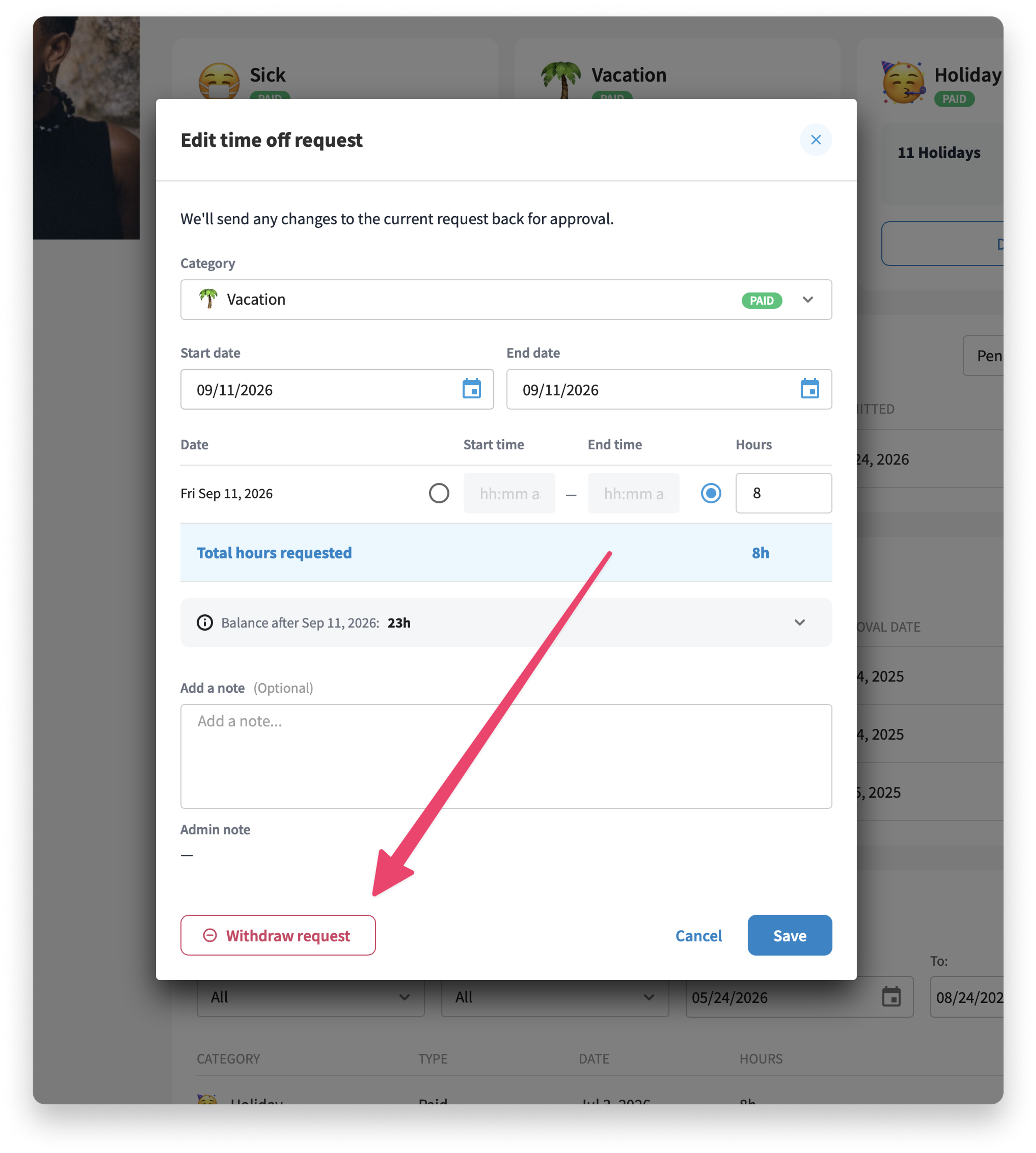
In the Edit time off request dialog, update any of the following: the category, the start and end dates, the hours for each day, or the optional note.
As you make changes, the Total hours requested and your balance after the request update automatically so you can see the effect before saving.
Click Save. Your updated request is sent to your approver for approval.
Withdraw a request on desktop
- Open the Edit time off request dialog for the request, following steps 1–3 above.
- Click Withdraw request in the bottom-left corner of the dialog.
- Confirm when prompted. The request is removed and no longer sent for approval.
Edit a request on mobile
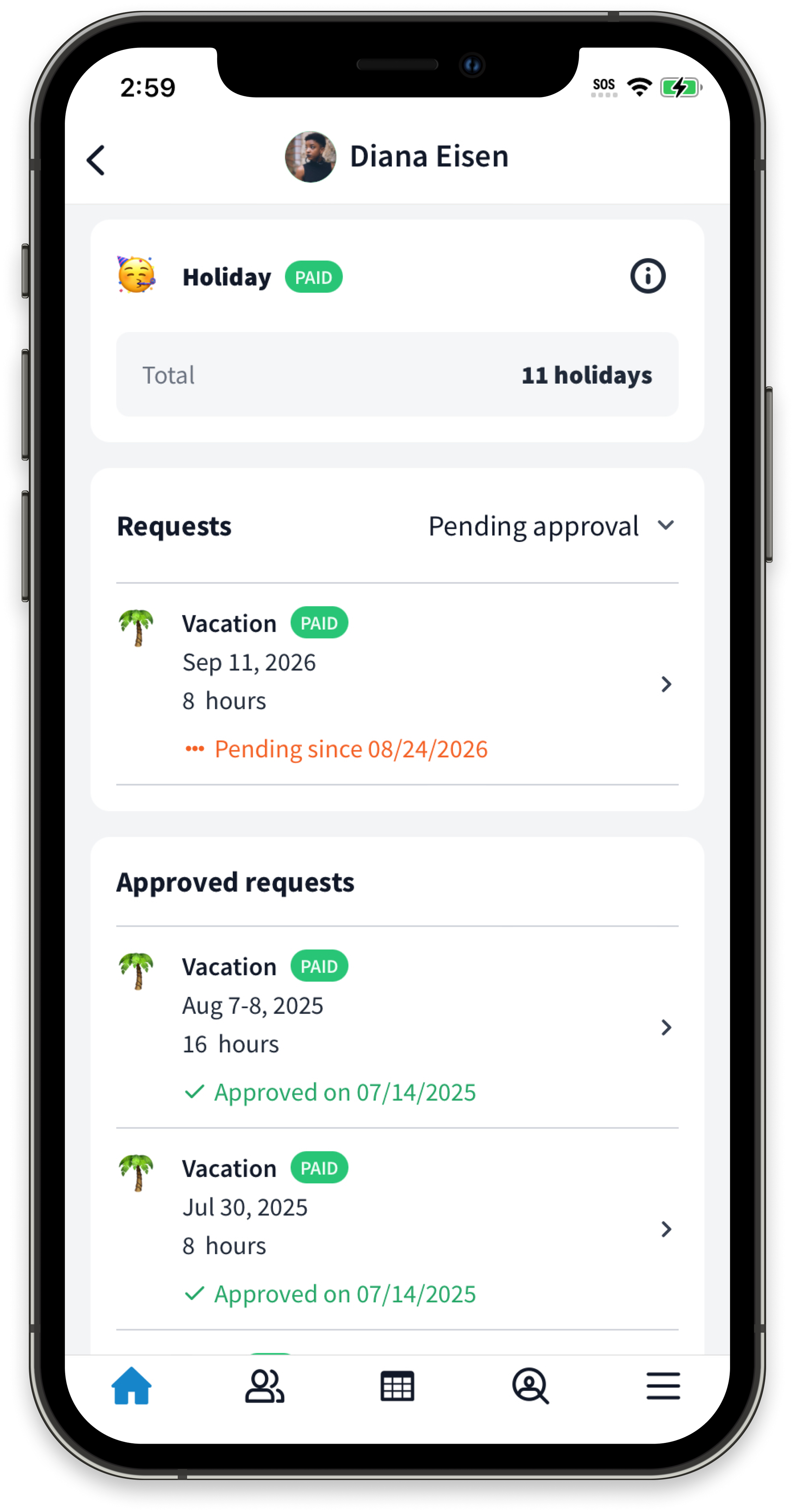
- From the Home screen, in the Time Off section, tap View requests.
- In the Requests section, tap the pending request you want to change to open Request details.
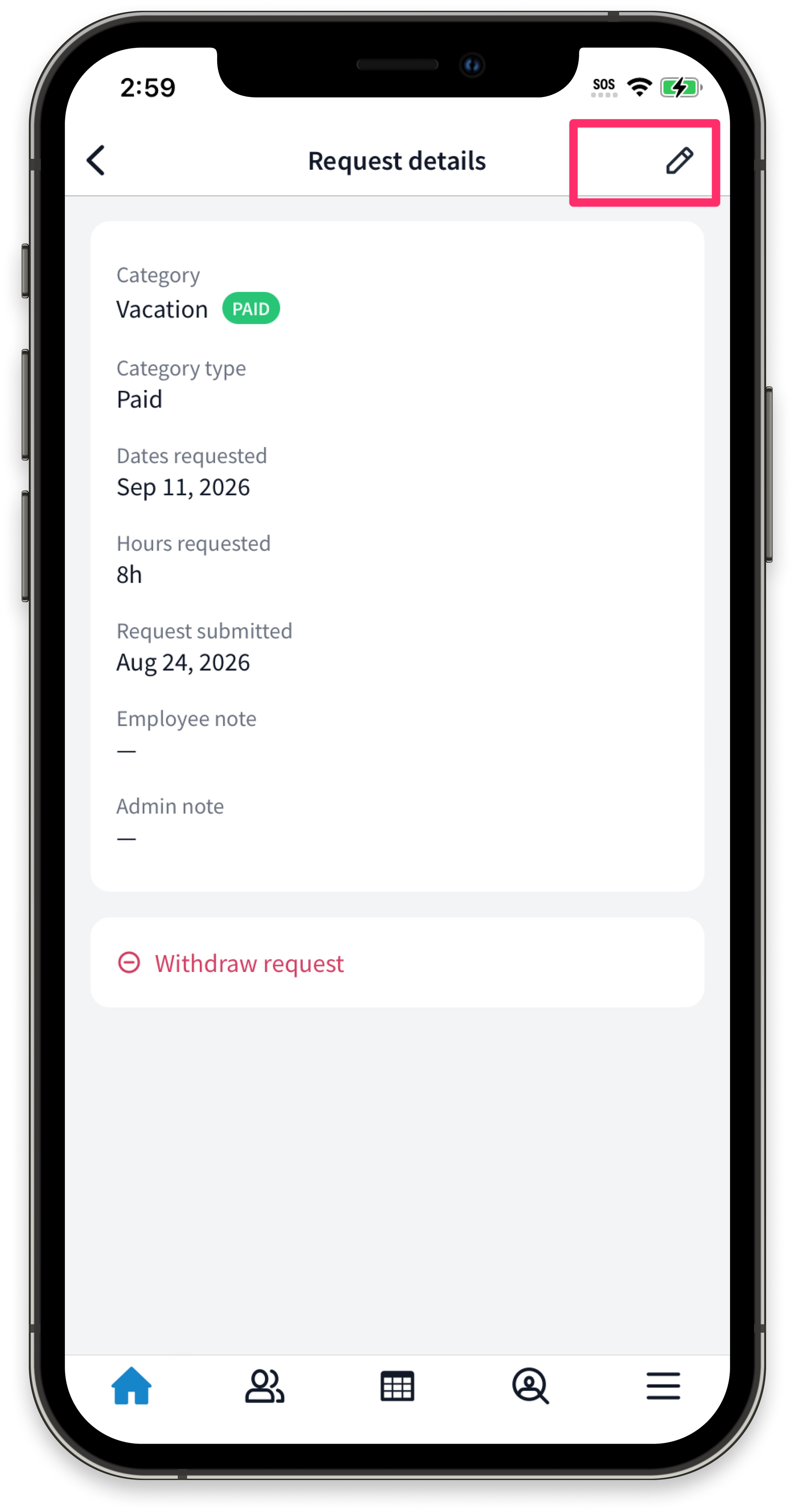
- Tap the edit (pencil) icon in the top-right corner.
- On the Edit request screen, update the category, start and end dates, hours, or note. Use the Times / Hours toggle to choose whether you enter start and end times or a number of hours.
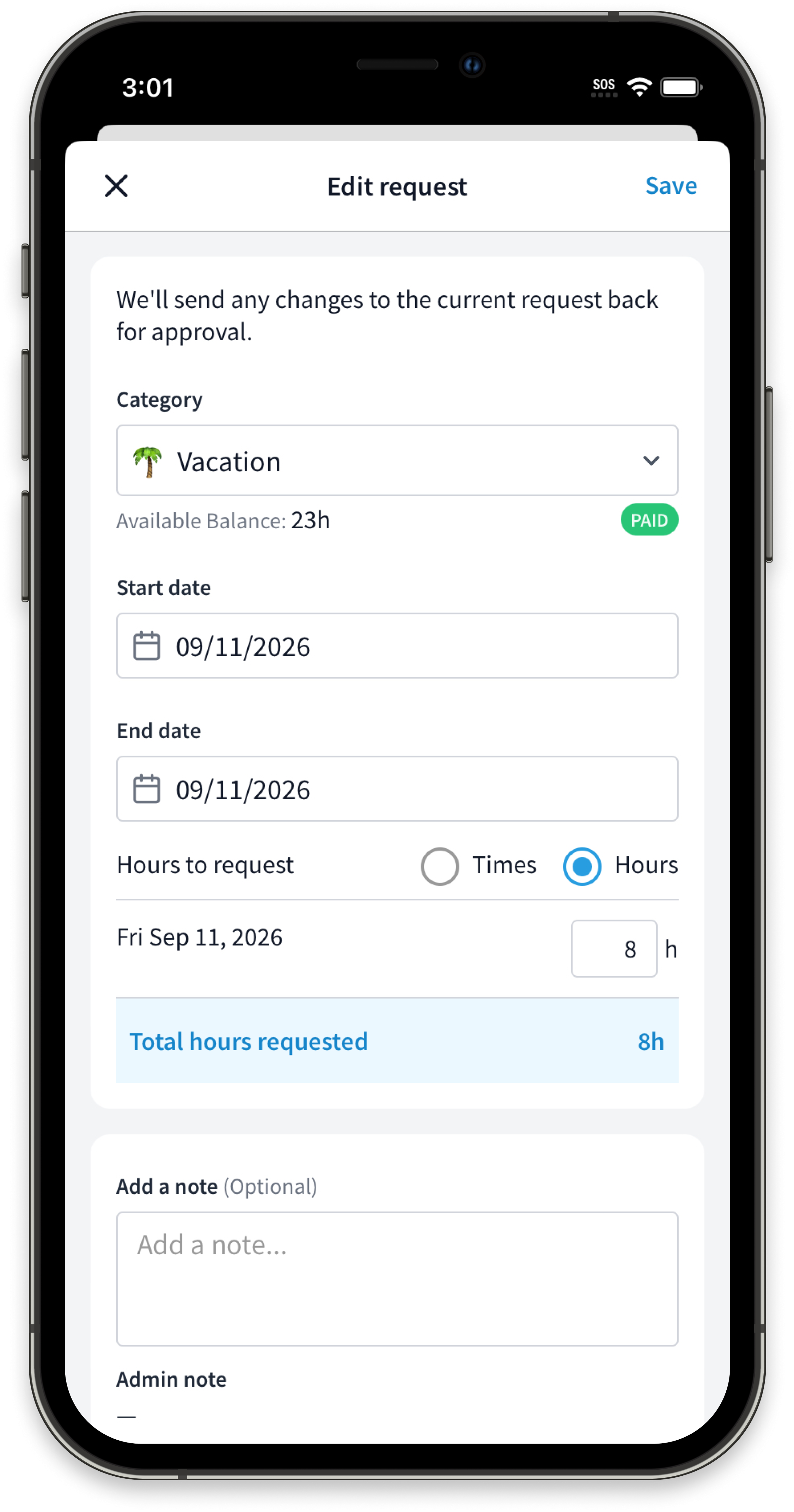
- Tap Save in the top-right corner. Your updated request is sent to your approver for approval.
Withdraw a request on mobile
- Open the request to view Request details, following steps 1–2 above.
- Tap Withdraw request.
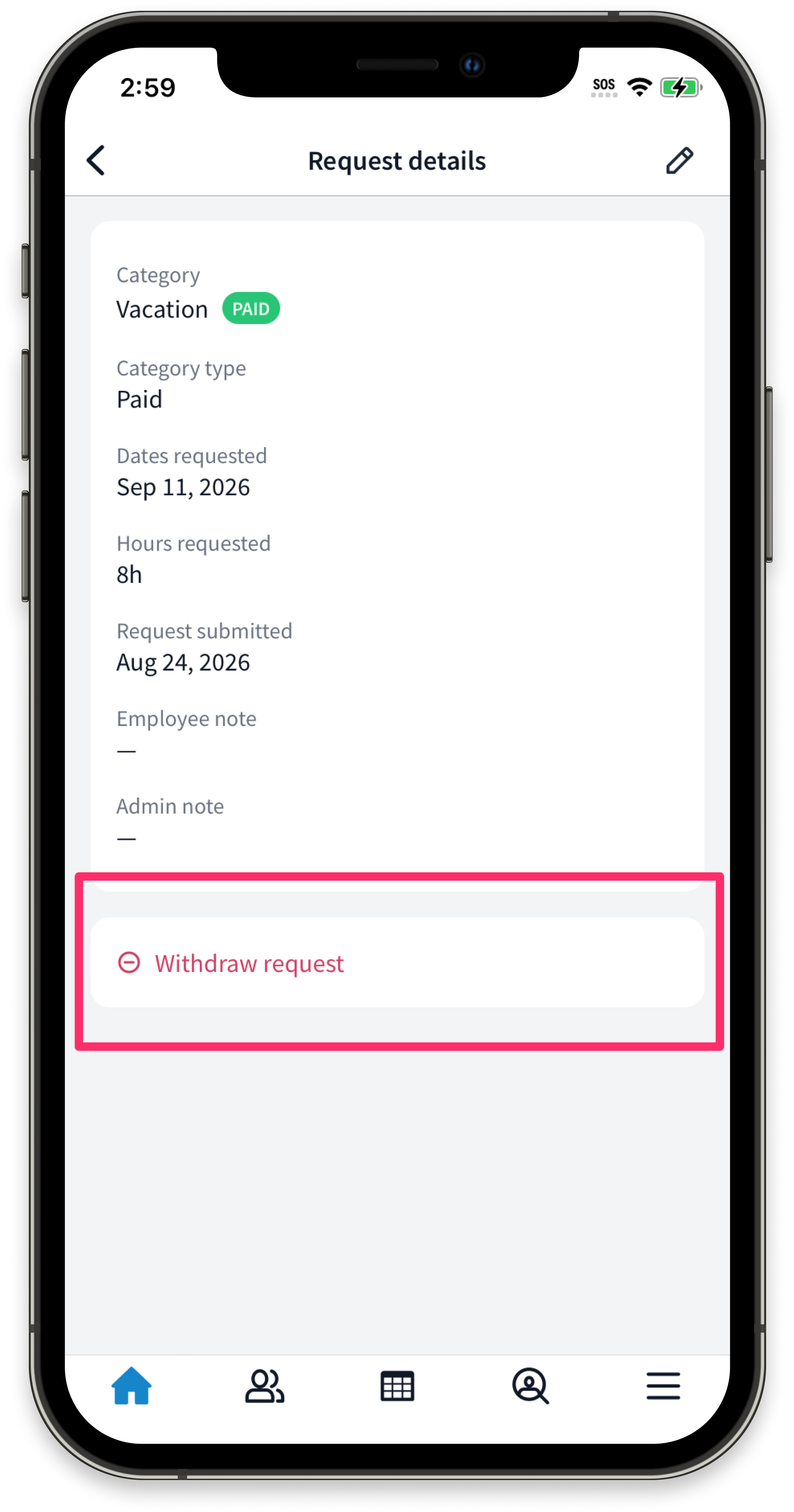
- In the confirmation prompt (Are you sure you want to withdraw this Time Off request?), tap Withdraw request to confirm. The request is removed and no longer sent for approval.
Frequently Asked Questions
What happens when I edit a request? Your changes replace the original request, and the updated request is sent back to your approver for approval. You don't need to delete anything or submit a separate request.
Will my time off balance update? Yes. The balance shown in the edit dialog reflects the change you're making, so you can confirm the impact before you save.
Who approves my edited request? The same approver who reviews your other time off requests. Because the request goes back for approval, any previous approval no longer applies.
Was this article helpful?