Sign in to Eddy
This guide walks you through accepting your invite, creating your account, setting up multi-factor authentication (MFA), and signing in to Eddy. If you get stuck, jump to Troubleshooting at the bottom.
Before you begin
You can't sign yourself up for Eddy. A company admin creates your profile first, using your name and the email address you'll sign in with. Once they do, Eddy sends a welcome email with your invite.
A couple of things to check before you start:
- Use the right email. Sign in with the exact email address your admin used to set up your account. If you're not sure which one that is, ask your company admin — they can look it up.
- Can't find the welcome email? Check your spam and junk folders. If it's still not there, ask your admin to resend the invite.
Step 1 — Accept your invite and create your account
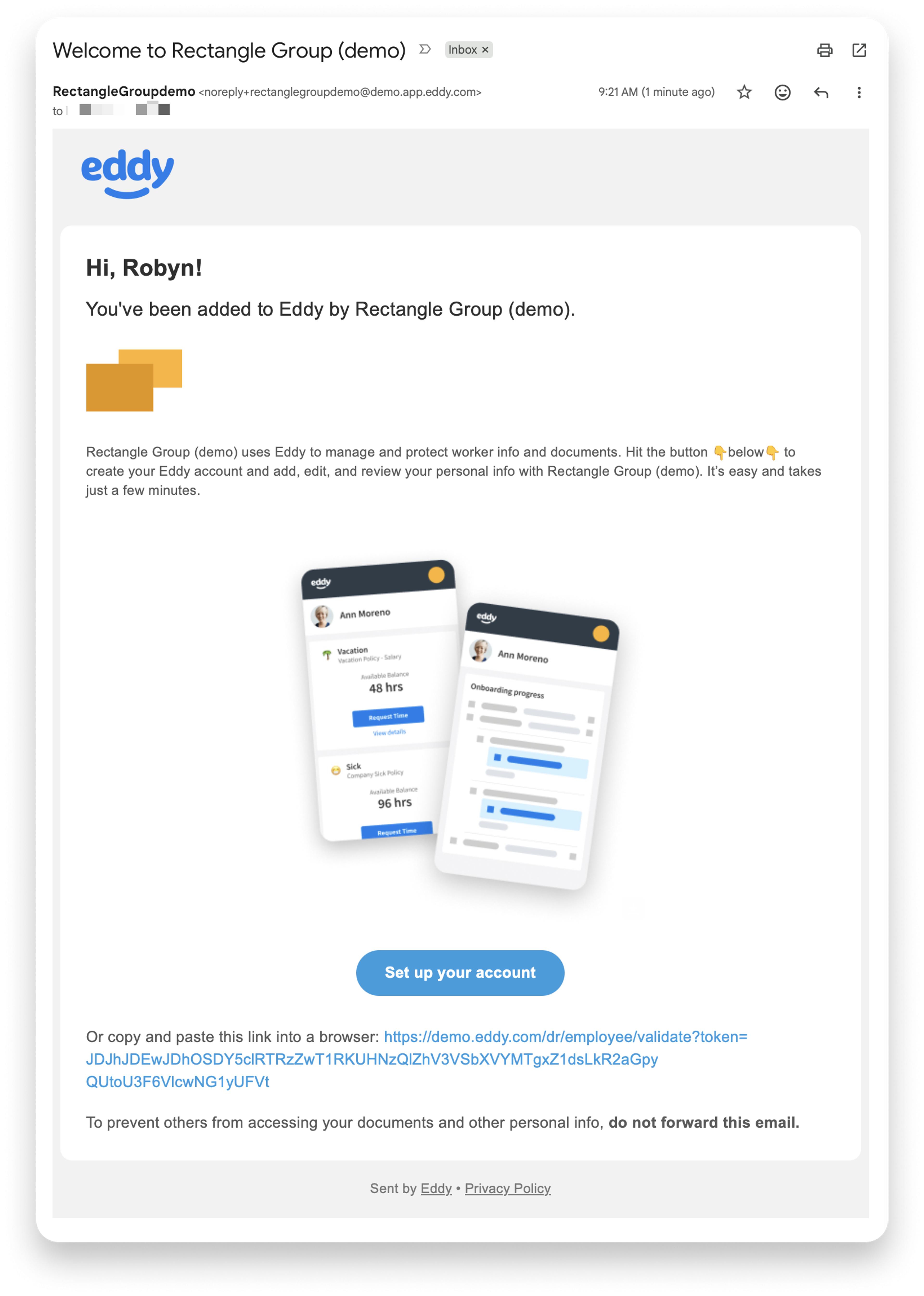
- Open the welcome email from Eddy and click the button to Set up your account.
- This opens Eddy in your browser and takes you to the account setup page. Your username is already filled in by your admin.
- Create a password when prompted. Choose something you don't use for other accounts. The password must include at least 8 characters, one uppercase and one lowercase letter, and one number.
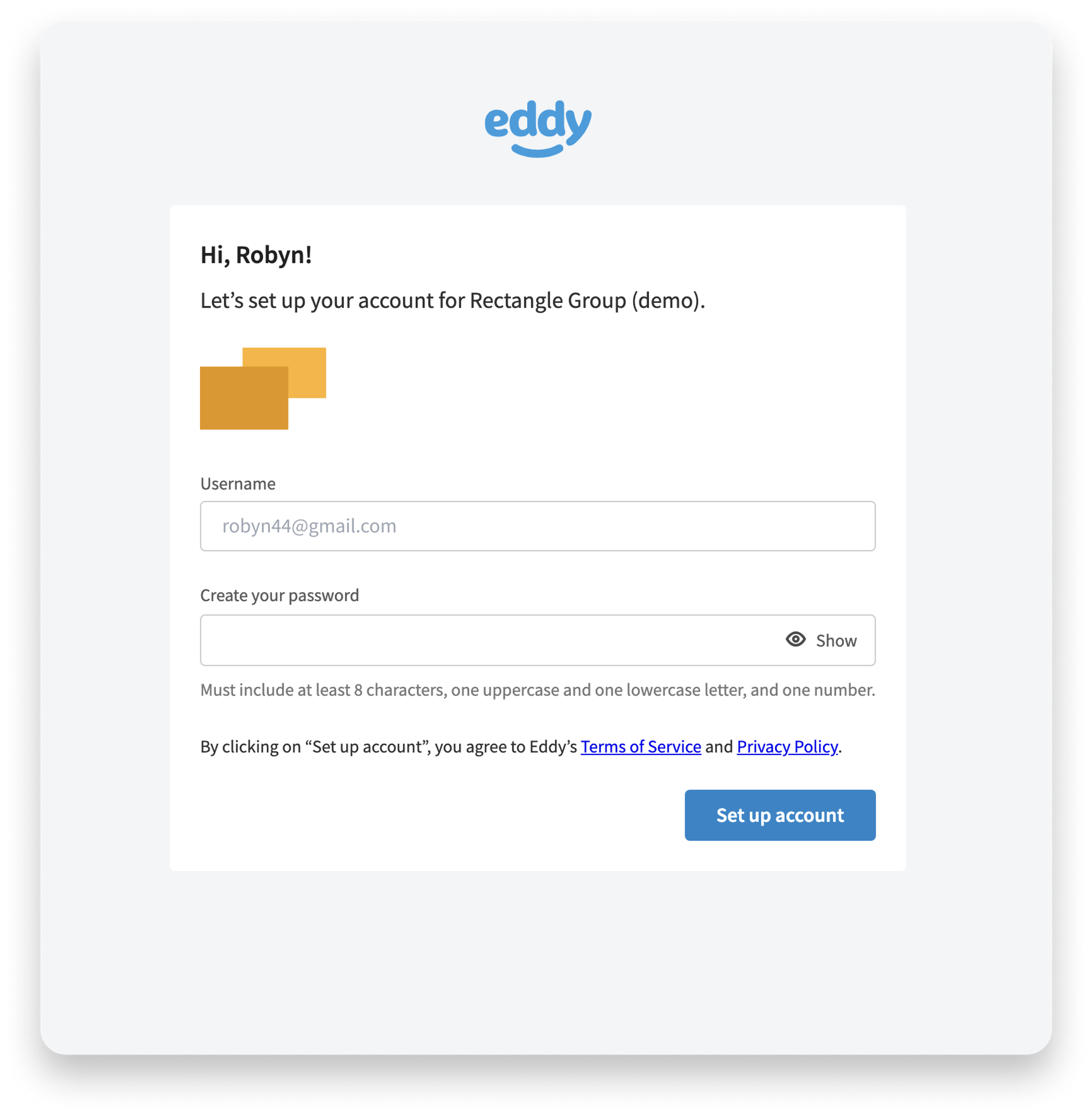
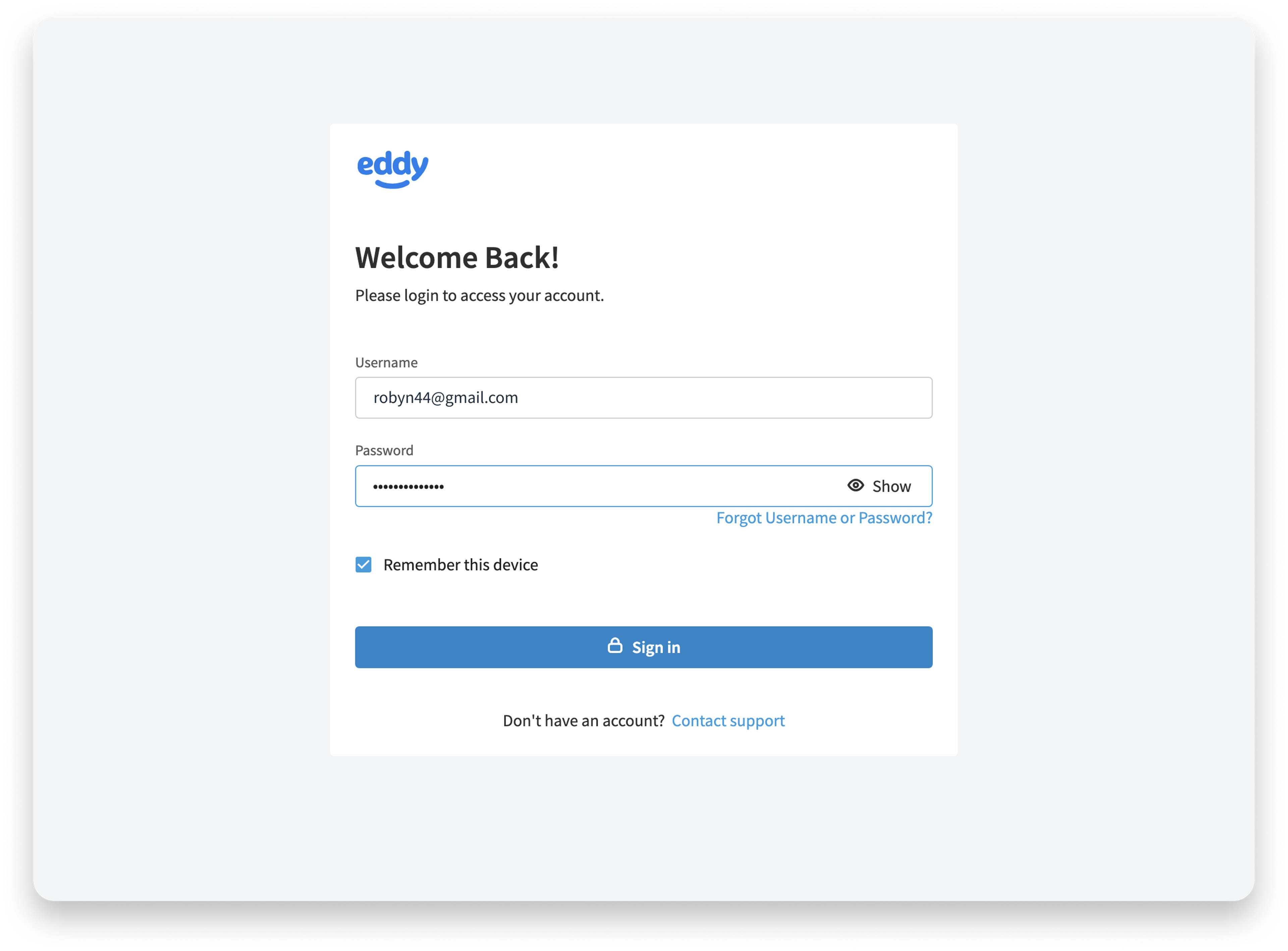
Once your password is set, Eddy will set up your account, and then ask you to login and set up multi-factor authentication before you can finish signing in.
Prefer to watch? The walkthrough video covers these same steps end to end.
Setting up on the Eddy mobile app
You don't have to use a web browser — you can set up your account and sign in from the Eddy mobile app instead.
If you already have the Eddy app installed, you can accept your invite right in the app to activate your account. Open the app, accept the invite, create your password, and set up two-step authentication just like the steps above. During setup you'll also have the option to turn on facial recognition so you can log in quickly next time.
If you don't have the app yet, you can install it from the Apple App Store (iPhone/iPad) or the Google Play Store (Android), then accept your invite to get started. For details on downloading and using the app, see the Eddy mobile app article.
Step 2 — Set up multi-factor authentication (MFA)
Eddy requires MFA to keep your account secure, so you'll set this up the first time you sign in. You can use an authenticator app or text message / phone call. Pick whichever is easiest for you — you only need one.
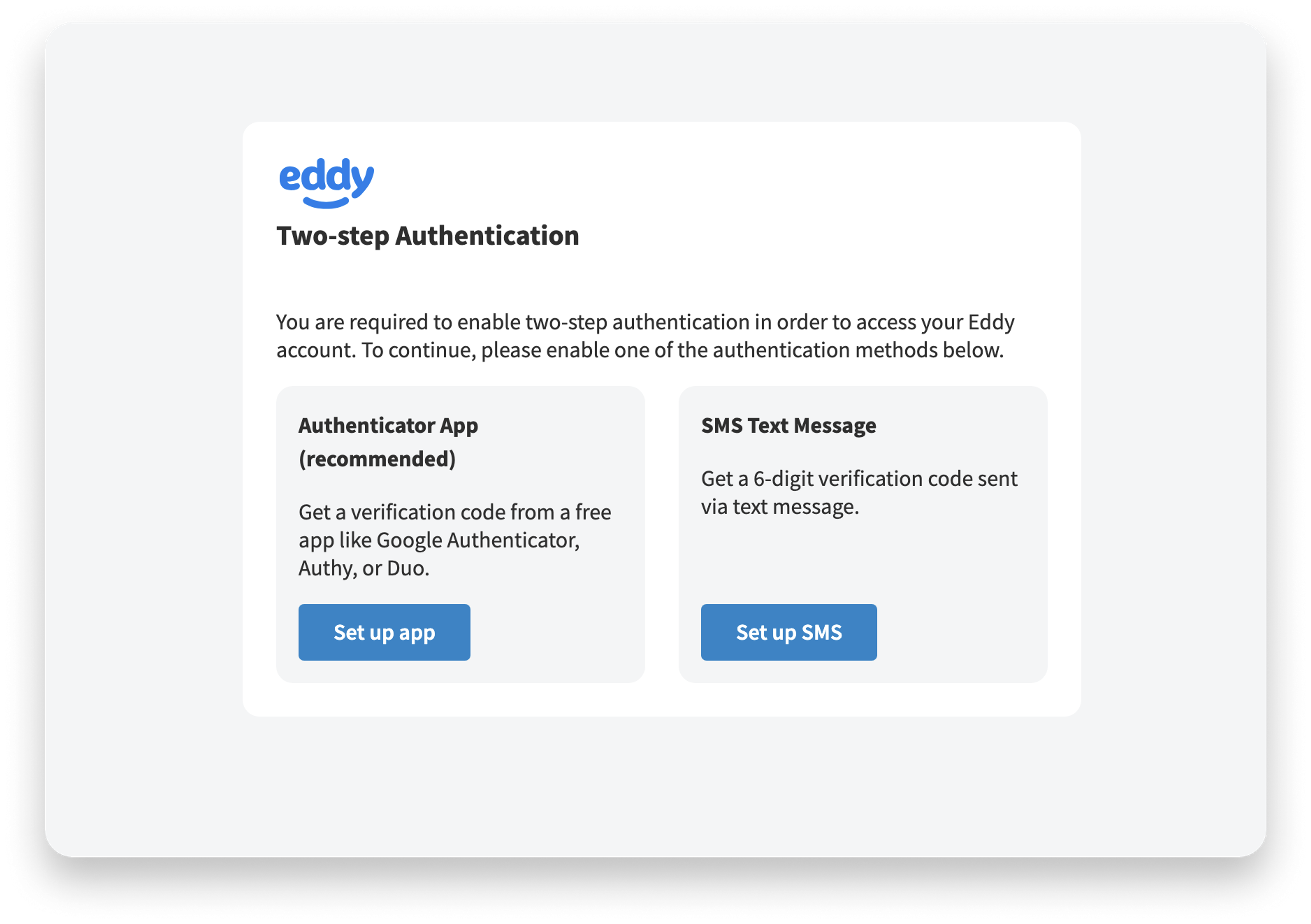
Option A — Authenticator app (recommended)
An authenticator app (such as Google Authenticator, Microsoft Authenticator, or Authy) generates a rotating 6-digit code on your phone.
- On the MFA setup screen, choose Authenticator app and click Set up app.
- On your phone, open your authenticator app and add a new account, then scan the QR code shown on screen. If you can't scan it, enter the setup key shown instead.
- Your app will start showing a 6-digit code. Enter that code on the setup screen to confirm.
- Save your backup codes when they're shown (see Backup codes below).
Option B — Text message (SMS) or phone call
With this option, Eddy sends you a verification code by text message. You can also choose to receive the code as a phone call instead of a text — useful if you're somewhere with poor cell signal or prefer a call.
- On the MFA setup screen, choose Text message (SMS).
- Enter your mobile phone number.
- Choose how you want to receive your code — text message or phone call.
- Eddy sends a verification code. Enter it on screen to confirm.
- Save your backup codes when they're shown (see Backup codes below).
Each time you sign in from now on, Eddy will send a fresh code the same way.
Backup codes
When you set up MFA, Eddy gives you a set of one-time backup codes. Save these somewhere safe (a password manager is ideal). If you ever lose access to your phone or authenticator app, a backup code lets you sign in. Each code works only once.
Step 3 — Sign in to Eddy
After your account and MFA are set up, here's how you sign in day to day:
- Go to the Eddy login page.
- Enter your username and password.
- When prompted, enter your MFA code — from your authenticator app, or the code Eddy texts/calls you.
- You're in.
Remember this device
On the sign-in page you'll see a Remember this device checkbox.
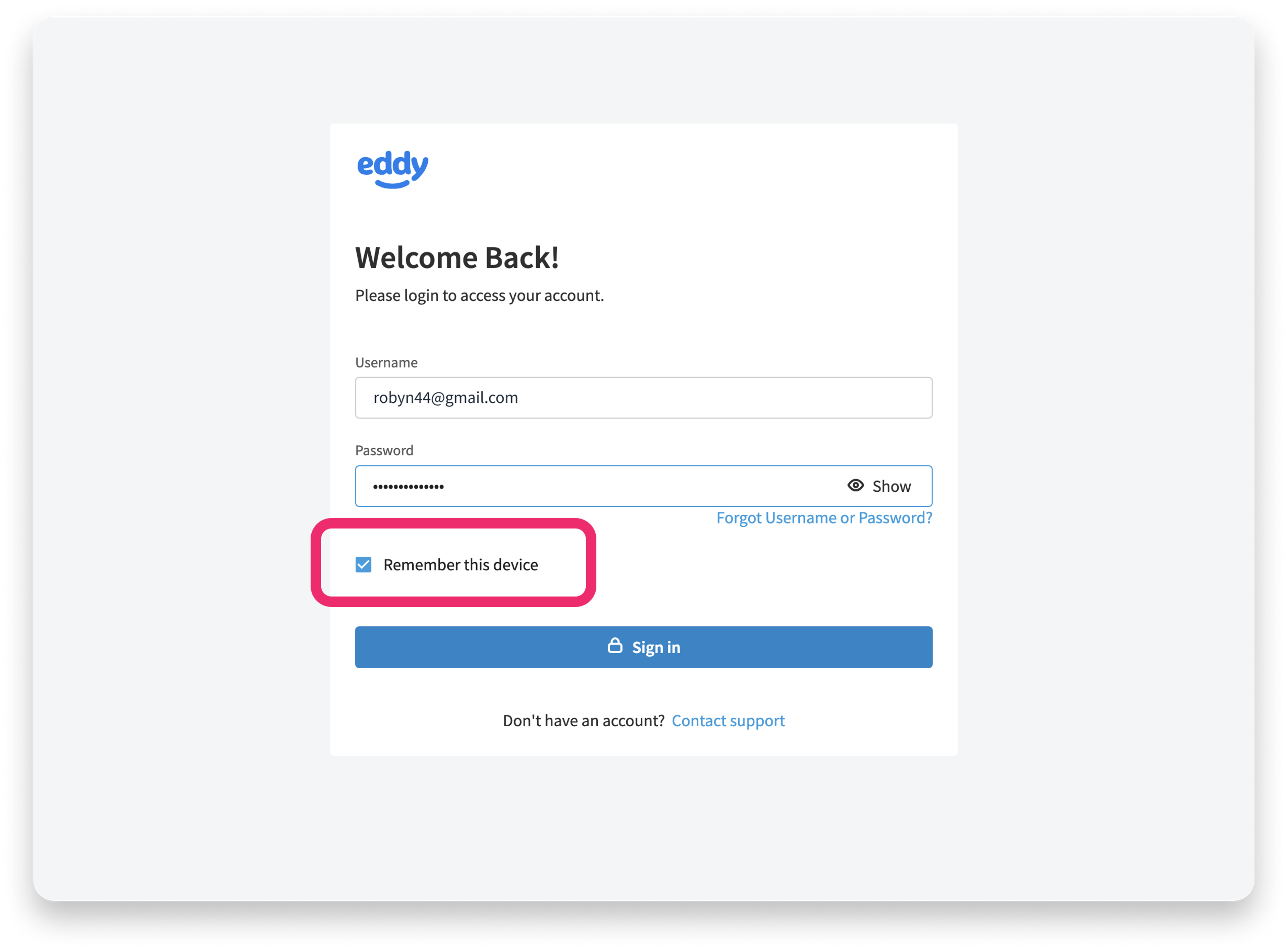
When it's checked, Eddy trusts the device you're on and won't ask you for an MFA code every time you sign in from it — you'll still enter your username and password, just not a fresh code each time. Check this box only on a private device that's yours and that other people can't access, like your personal work laptop or phone. Leave it unchecked on any shared, public, or borrowed computer so that no one else can get past MFA on your account.
Forgot your password or username?
If you've forgotten your password — or you're not sure which username or email is on your account:
- On the Eddy login page, select Forgot Username or password.
- Enter the email address associated with your Eddy account.
- Eddy emails you your username along with a link to reset your password.
- Check your spam or junk folder if the email doesn't arrive within a few minutes.
- Follow the link to set a new password.
Troubleshooting
I never got the welcome email. Check your spam and junk folders first. Confirm with your admin which email address they used — the invite goes only to that address. If it's correct and still missing, ask your admin to resend the invite.
My invite link expired or won't work. Invite links can expire. Ask your company admin to resend the invite, then use the newest email.
I don't know which email my account uses. Your company admin set this up and can tell you exactly which email address is on your account.
I lost my phone or can't access my authenticator app. Use one of the backup codes you saved during MFA setup to sign in. If you don't have your backup codes, contact your company admin — they can reset your MFA so you can set it up again on your new device.
My MFA code isn't working. Codes are time-sensitive. If you're using an authenticator app, make sure your phone's clock is set to update automatically. If you're using text/call, request a new code and use the most recent one.
The password reset email isn't arriving. Double-check you entered the email that's actually on your account, and look in spam or junk. If it still doesn't come through, contact your company admin.
Was this article helpful?